
You can access FairMapr directly through your event’s unique link:
Event Link: https://mtuspring26.fairmapr.com/
If you don’t know your event’s unique link, check all events here: https://fairmapr.com/events
Recommended devices
- Before the fair: Laptop or desktop for planning
- During the fair: Smartphone for live navigation
In order to sync favorites and employer notes between desktop and mobile, you will need to sign up for a free account.
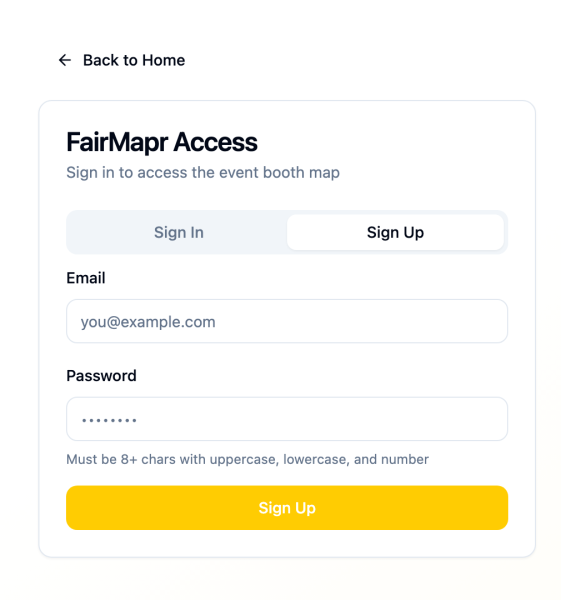
Click “Sign In” in the upper right corner and then click “Sign Up”. Creating an account only takes a moment and will ensure your data is saved beyond the current browser session.
There is no download required to use the interactive map. Simply open it on your browser, either on mobile or desktop.
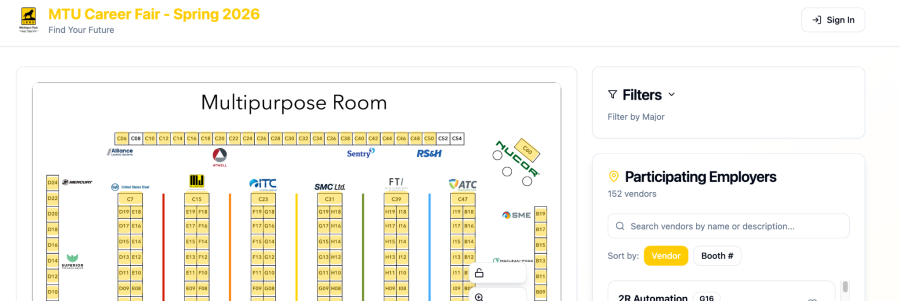
FairMapr Interface Overview
When you open FairMapr, you’ll typically see:
- Interactive map — shows the layout of the fair and booth locations
- Search bar — find employers by name or keyword
- Filter panel — narrow results
- Employer List — clickable results connected to map locations
Think of the map as the “where” and the employer list as the “who.”
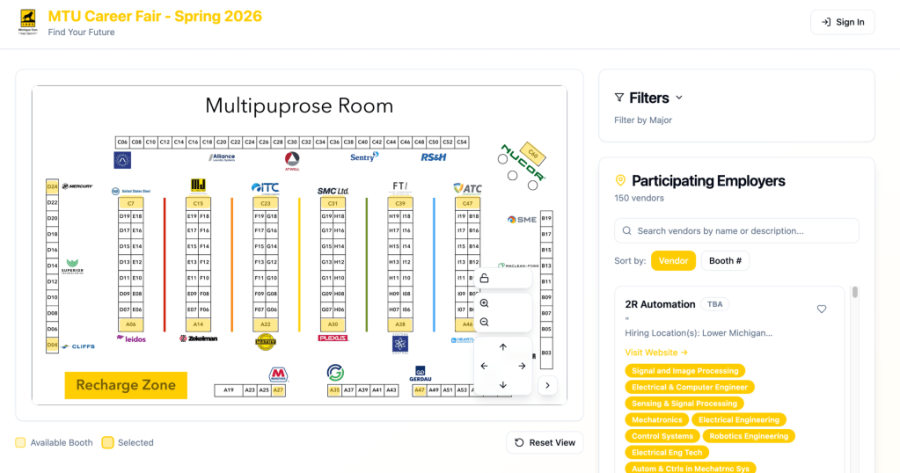
How to Search for Employers in FairMapr
Use the search bar to quickly find employers.
You can search by:
- employer name
- Keyword (based on employer description)
As you type, results will update automatically and highlight matching booths on the map. Tip: Try broad keywords first, then narrow down.
How to Filter Employers
Filters help you find vendors that match your goals.
Career Fair filters include the majors an employer is looking to hire for.
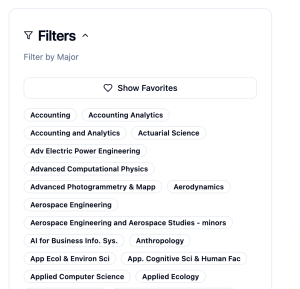
How to use filters effectively:
- Select one or two filters to start
- Filters use an “OR” logic for filtering. The more filters you apply, the larger the number of employers that will likely be displayed.
- Review the results
- Adjust or add filters as needed
Using too many filters at once may show extra employers.
Advanced Search Window
Searching can help you refine the employer list to even more pinpointed results.
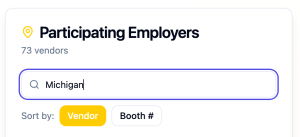
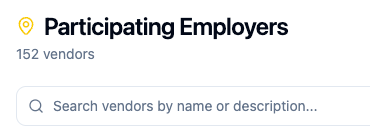
Scroll down to the “Search vendors by name or description” field and type in whatever you are looking for.
If you remember the name of the company you’d like to find, simply type it in here.
If you want to search more specifically about types of jobs, you can search using the following terms.
| Terms You Can Search For | |
| Employment Type |
During the registration process, employers are asked to select all applicable options from the Employment Types list. -Full-Time -Part-Time |
| Job Types |
During the registration process, employers are asked to select all applicable options from the Job Types list. -Cooperative Education -Internship -Job |
| School Years |
During the registration process, employers are asked to select all applicable options from the School Years list. -Freshman -Sophomore -Junior -Senior -Masters -MBA -Doctorate -Postdoctoral Studies -Alumni |
| OPT/CPT |
If a company is willing to work with students with Visa requirements, their posting will indicate: -Accepts OPT/CPT |
| Jobs Locations |
During the registration process, employers are asked to select all applicable locations to indicate where the positions they offer are based. -Lower Michigan -Upper Michigan -Wisconsin -Minnesota -Illinois -Other |
If you need assistance with the map, you can reach out to career@mtu.edu or support@fairmapr.com