eLearning Blog

Posts under the ‘CTL Tips’ category

Copying Content from Another Canvas Course

Wednesday, May 8th, 2013

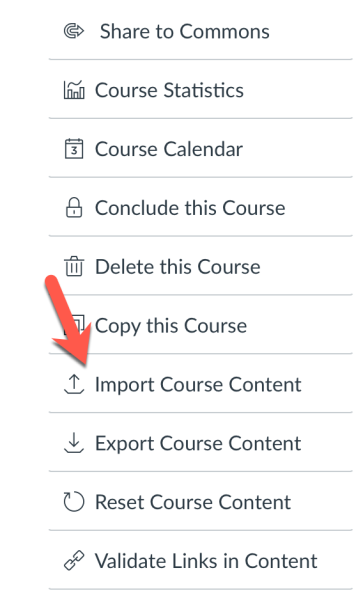
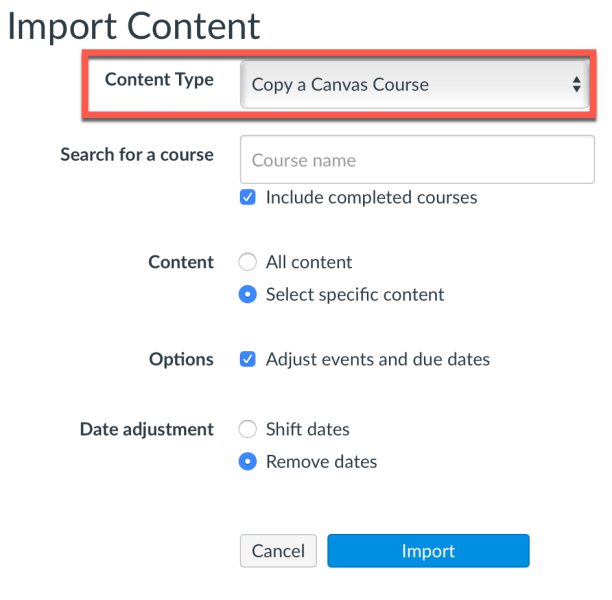
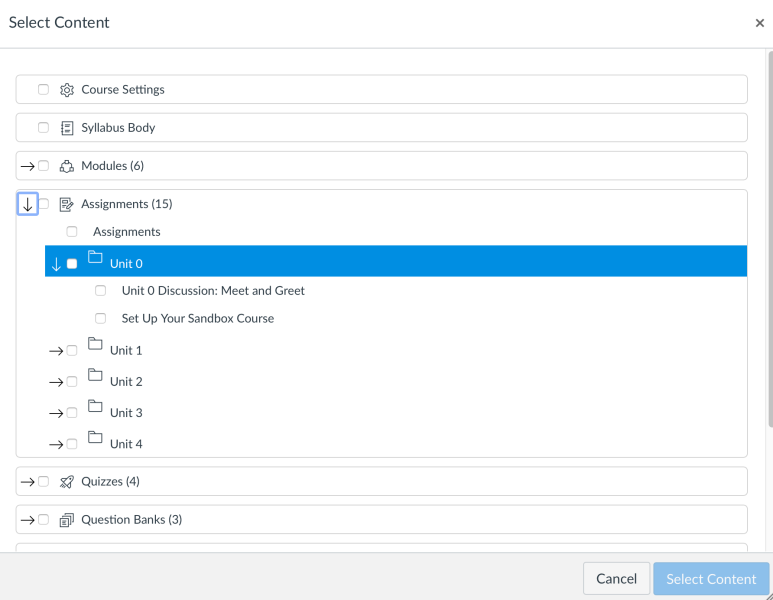
As you prepare for next semester’s courses, you may want to use or repurpose previously created course content.  Canvas makes it easy for you to copy or import content from one of your courses into another. You can choose to copy all the content (including assignments, modules, files, quizzes, pages, etc.) or you can select individual items to copy.

Imports do not include any student data, enrollments, or input (like assignment submissions, grades, or discussion posts), so it’s a good way to use your previously created content. For a new class of students, you can import content into new Banner-created courses and easily adjust event and due dates. Another typical use is to create a new course, copy content into that course and use it as a template course with contents available whenever you need it.

Check out “How do I import content from another Canvas course?” for an illustrated step-by-step guide to copying content from one Canvas course to another and “How do I create a new course shell?” from the Canvas Instructor Guide to manually create your own new, blank course.  For more general information or help with Canvas at Michigan Tech, and to register for eLearning workshops, visit Canvas One Stop.

Submitting Grades via Canvas and CourseTools

Thursday, April 25th, 2013

Instructors still have two options for electronic grade submission.  You can submit grades via Banner Self-Service by going directly into Banner, entering your grades, and then clicking submit.  OR, for those with larger class sizes where grades have already been totaled in Canvas or another spreadsheet program, you can submit grades via Canvas by going to CourseTools and using the Grade Wizard to first extract them from Canvas and then submit them to Banner.

If you choose to submit grades via Canvas, you will need to have your grades for submission entered into an assignment column in your Canvas grade book because the Grade Wizard cannot access grades in the Total column.  We recommend that you use the Final column, which has a default grade scheme that accepts all valid Banner letter grades. This scheme will work well if you plan to type or upload letter grades from a spreadsheet. If you want to upload numerical scores from a spreadsheet into Canvas, you may want to adjust the percentage ranges for the Final column’s grading scheme. Refer to Enable, Create, and Edit Letter Grading Schemes in Canvas and upload scores from a spreadsheet into Canvas to learn more.

Then go to the CourseTools page, and click on Submit Grades Electronically via Canvas to use the Grade Wizard, which extracts your grades from Canvas and submits them to Banner. You can review the Guide to Submitting Grades via Canvas to see illustrated, step-by-step directions and links to video demonstrations and additional information.  You may also want to look over the Guide to Submitting Grades via Banner to help you decide which method is best for you.  You can always access general information and help with Canvas at Michigan Tech, register for eLearning Workshops, and find out about our eLearning Walk-In hours on the Canvas One Stop page.

By your eLearning Team!

Thanks,

Submitting Grades via Banner Self Service

Friday, April 19th, 2013

Instructors don’t have to use Canvas to submit grades. Mid-Term and Final grades can be submitted electronically either via Canvas, OR via Banner Self Service.  Banner Self Service is the simpler of the two systems; instructors can enter grades directly, click submit, and be finished!   You can access a short text only guide, a more detailed illustrated guide, and a Power Point presentation, as well as watch the eLearning screencast for a video demonstration, at Submitting Grades via Banner Self-Service.

Grade submission through Canvas will be covered in next week’s CTL Tip of the Week.   Since the process requires more steps, it’s most beneficial for larger classes where grades have already been totaled in Canvas or another spreadsheet program.  Grades will need to be entered or uploaded into the “Final” column in Canvas first, and then extracted from Canvas and submitted to Banner using “Coursetools.”

Those who want even more details about the grade submission process can sign up for grade submission workshops to be held during Week 14 and early in Finals Week.  You can always access general information and help with Canvas at Michigan Tech, register for eLearning Workshops, and find out about our eLearning Walk-In hours on the Canvas One Stop page.

By your eLearning Team!

Help Improve Canvas by Voting for your Favorite Feature Requests

Wednesday, April 17th, 2013

Instructure, the makers of Canvas, have a Feature Request Forum to allow all Canvas users to suggest improvements.  Instructure monitors these forums closely, and feature requests with the most votes garner the most programming attention.  Instructure will be working to implement many new features this summer, so it’s important that Michigan Tech let its voice be heard!

To help this process, eLearning, part of the Center for Teaching and Learning, has created a Favorite Canvas Feature Requests page to help Michigan Tech Canvas users “vote up” the feature requests we’ve heard.  The page has direct links to each feature request in the hopes that you will go to that page and click “Me Too!” to help move these requests to the top.

If you don’t find the improvement you would like among the eLearning list, you should search for an existing request for your desired improvement.  In most cases you will find that another user has already made the same suggestion, and you can vote for it.  (Making more than one feature request for the same improvement only waters down the number of votes each can get!)  If your search turns up empty, you are also welcome to make an entirely new request.

For more general help and support using Canvas, visit Canvas One Stop.  The CTL Tip of the Week is brought to you by the Center for Teaching and Learning (CTL).  You can see what’s going on there this week at our website.

Print a Class Photo Roster Using Banner Self Service

Wednesday, April 10th, 2013

Banner Self Service provides students, instructors and staff with a wide variety of information and services. As employees, you may already use Banner to determine leave balances, track available Tech Fit money, and access your pay information. While you may be aware that instructors can use Banner to submit grades and view teaching history, you may not know that you can use Banner to print a roster with student photos for each course you are teaching.

A photo roster of the students in your class can be very useful for many reasons.  Some instructors find it helpful when getting to know their students early in the term.  Some even study the roster before classes begin in order to better associate names and faces.  The photo roster can also be a helpful resource when attempting to verify a specific student’s identity not only during class and group presentations, but for exams and office visits too.  Please make sure you are following all FERPA guidelines related to confidential student information when you access and use student class or photo rosters from Banner Self Service.

You can watch this screencast to see a video demonstrating how to access your class photo roster.  The CTL Tip of the Week is brought to you by the Center for Teaching and Learning (CTL).  You can see what’s going on there this week at our website.

See Your Canvas Course from a Student View

Tuesday, April 2nd, 2013

Have you wondered how your Canvas course looks from your students’ perspective? The Canvas Student View feature creates one “Test Student” user that allows the instructor to view course content as a student would. Each course has a unique Test Student that every instructor in the course has access to. As the Test Student, you can submit Assignments & Quizzes, review Grades & Assignment feedback (including Crocodoc via the preview icon), post to Discussions, as well as view the Syllabus tab.

To view your course from a student perspective, click on Settings in the left navigation, then on the Student View button that appears at the upper right of the screen. You will know if you are in Student View because of the persistent bar on the bottom of the screen indicating you are logged into Student View. Click the Leave Student View button to exit the student view. Please note that Conversations, Collaborations, Groups and Profile do not work for the Test Student.

You can review the Instructure Guides “What is Student View?” and also “Where can I find the student view of the Gradebook?” for more information. For more general help and support using Canvas, visit Canvas One Stop The CTL Tip of the Week is brought to you by the Center for Teaching and Learning (CTL). You can see what’s going on there this week at our website.

Assignments and Quizzes Change Their Look to Enable Varied Due Dates

Friday, March 22nd, 2013

Assignments and quizzes in Canvas have a new look to enable instructors to set varied due dates for each section of their course. Though the assignment and quiz interfaces look different, they contain essentially the same set of options.  Date fields have changed, but if you are not trying to set different due dates for different sections, just leave the default setting of “Everyone” as is when setting dates, and these features work as they always have.

The Varied Due Dates by Section feature could be very useful in a Canvas course containing two or more sections that meet on different days of the week or that have different formats (e.g. online and face-to-face.)  In general, students only see their own assignment dates, but the instructor sees an assignment entry for each section.  Instructors who would like to take advantage of the new feature can contact eLearning for guidance; the feature works well, but the process of setting varied due dates is not particularly intuitive. A preliminary look from Canvas can be found on the Varied Due Dates by Section page.

For more general help and support using Canvas, visit Canvas One Stop.  The CTL Tip of the Week is brought to you by the Center for Teaching and Learning (CTL).  You can see what’s going on there this week at our website.

Access your files anywhere, anytime with Google Drive!

Wednesday, March 6th, 2013

When Michigan Tech made the transition from Huskymail to Gmail, we also gained access to an entire suite of Google Apps.  You may already be using Gmail and Google Calendar, but have you checked out Google Drive yet?  Google Drive lets you store your files in a way that they can be accessed from anywhere. Your files are always available online at drive.google.com.

You can also share files with others using Google Drive to collaborate on documents.  Anyone you want to share files with will need to have a Google account.  Google Drive lets you choose exactly who gets your files. Just share your file, folder, or Google Doc from any device.  You can grant others the ability to download and edit files you have shared, or share them in a read-only mode.  If you are sharing a Google Doc, Sheet, or Slide (presentation), everyone can work together on creating and editing the document in real time, and contributions can be tracked for each individual.

Those interested in learning more about Google Apps have several options.  The Center for Teaching and Learning will be offering a new workshop called Google Tools for Great Teaching, which will survey Google Drive and other apps, on March 21 and April 17.  You can also look over Google’s own documentation and instructions for using Google Drive at their Get Started with Google Drive site, and watch a video from c|net® called How to: Get Started with Google Drive for a nice overview of using Google Drive.

The CTL Tip of the Week is brought to you by the Center for Teaching and Learning (CTL).  You can see what’s going on there this week, and register for the Google Tools for Great Teaching workshop, at our website.

Using Video In Your Course: Expand Your Options

Friday, February 22nd, 2013

The use of video in online and blended courses can provide many new options for you and your students. Replacing the traditional live lecture with strategically-chunked video segments is one popular use for video. This approach, often referred to as the flipped or inverted classroom model, can open class time for more active or collaborative activities. Video can also used to provide a concise worked example or other scaffolding to support just-in-time learning. Lab demonstrations, procedural “how-to” videos, and video prompts and feedback (for assignments and projects) are other ways video can enhance instruction.

Video can also increase the personal connection for participants of an online or blended course through short video introductions by the instructor and students. Students can also be encouraged to review and discuss homework problems or other topics on video within a discussion board. These techniques establish and support a community of learning in your course.

Canvas offers built-in video recording capability, allowing direct recording through the use of webcams and microphones on most modern laptop and desktop computers. Other university supported video resources such as Echo360 personal lecture capture software, and Adobe Connect web conferencing software provide record capabilities to produce presentations for asynchronous playback.

The Center for Teaching and Learning (CTL) offers periodic workshops on the use of video and other instructional topics of interest. Our next Video Tools for Teaching and Learning workshop is scheduled for Thurs. Feb 28, from 10-11AM. Check the CTL website to sign up or contact ctl@mtu.edu or 487-2046 to schedule an individual consultation!

Discussion Boards: More Impact with Less E-mail!

Thursday, February 14th, 2013

Instructors traditionally use online Discussion Boards (DBs) to help determine student understanding, support peer learning, and encourage participation, particularly among students who are least likely to contribute to classroom discussion.

While DBs are well suited for use in classes heavy in debate and explorative topics, instructors can also use DBs to manage student questions, potentially reducing instructional time dedicated to answering email. If students are encouraged to post questions to a course question and answer DB, the whole class can benefit from both the posted question and the instructor’s response.  This is especially helpful for issues like course navigation, technical support, or peer feedback on projects.  With the right incentives, you may even find students in your class willing to answer questions and direct others to online resources.  Research has shown that this question articulation and peer interaction benefits both the questioner and the responder!  As a DB’s content grows, students gain access to resources and help 24 hours per day, and the instructor gains insight into typical student struggles and outside resources that students are using to address them.

Students may need small incentives like a single redeemed homework point for each post or a minimum posting requirement during the term to motivate them to use a DB.  An instructor may also copy early e-mails anonymously to the DB and respond there – then reply to the students’ e-mail directing the student to the DB for his/her response (and for future use!).   Once students start posting, many will find it so useful they’ll need no incentives!

Canvas contains a built-in threaded discussion tool in every course, which includes the ability to post images, equations, audio clips, and even video.  Instructors teaching problem-based courses may find that the free, seamlessly embeddable Piazza discussion tool, which features a non-threaded answer format and a robust LaTeX equation editor, works even better.

The Center for Teaching and Learning (CTL) offers periodic workshops on discussion boards and other instructional topics of interest.  Our next DB workshop is scheduled for Wed. Feb 20, from 2-3 PM.  Check the CTL website to sign up or contact ctl@mtu.edu or 487-2046 to schedule an individual consultation!

William G. Jackson Center for Teaching and Learning

219 Van Pelt & Opie Library
1400 Townsend Drive
Houghton, MI 49931

Ph. 906-487-2046
Email: ctl@mtu.edu

Michigan Technological University

1400 Townsend Drive
Houghton, Michigan 49931-1295
906-487-1885

See a Problem?

Email the Webmaster

Protected by Akismet | Blog with WordPress