March

Spring UPTLC virtual presentation 2,

Tuesday March 16, 2021 at 3:30 PM via zoom
Each workshop consists of two consecutive presentations followed by 10 minutes of discussion.

From Classroom to Resume – Skills that Count by Geralyn Narkiewicz, LSSU Career Services
Abstract: 
It is not unusual to read business reports or survey results that indicate recent college graduates are lacking in key employability skills. What skills are employers looking for? Are students truly lacking these skills or are they just not connecting the dots between their learning and the skills they are developing? In this presentation, we will discuss the 8 career competencies identified by the National Association of Colleges and Employers. Participants will share and discuss ideas for increasing student awareness and understanding of the skills they are developing through their college coursework.

WRITE-D: Applying Write-on-Site to Graduate Work in the Disciplines by Co-presenters: Andrew Fiss, MTU Humanities Department; Sarah Isaacson, Will Cantrell, and Pushpalatha Muthy, MTU Graduate School
Abstract:
 While writing is a necessity in graduate programs throughout the disciplines, many find it difficult to address. At this session, we will introduce “write-in-department” groups: groups that provide a regular space and time for writing together within a department. Acknowledging the uses of such groups in undergraduate instruction, write-on-site groups have been implemented successfully at the graduate level at Michigan Technological University. Session leaders will discuss the application of this model to groups in Physics, Chemistry, Civil and Environmental Engineering, Biomedical Engineering, and Biological Sciences. Attendees will be asked to participate in a short exercise of writing and reflection as a way of exploring the benefits of this approach. Graduate write-in-department groups provide an opportunity for discipline-specific discussions of writing over the duration of the graduate program. In contrast to the “dissertation boot camp” model, the WRITE-D model engages students with disciplinary writing throughout. As needed, faculty share knowledge about rules, norms, and processes, especially having to do with publications, proposals, and fellowships in the field. More broadly, write-in-department groups provide a social network for working through writing — one located within the department, with involvement of department faculty and facilitated by graduate student peers. Overall, the WRITE-D program uses graduate write-in-department groups as a way to help students generate better writing, more effectively.

To register for other UPTLC presentations, use these links:

Tuesday, February 16 at 3:30 PM 

Tuesday, April 13 at 3:30 PM

CTL Instructional Award: Large classroom teaching to Kette Thomas

Tuesdays, March 30. 2021 at 3:30PM

The 2020-2021 CTL instructional Award for large class teaching will be presented via a zoom session on. Dr Thomas will give a presentation titled Empathic Instruction: The Power and Limits of Making it Personal. To register for this event, please use this link.

Abstract: Professionalism suggests disciplined, objective, and impersonal communication between the vendor and his client. Conventional business practitioners might frame their organizations around bureaucratic ideals, delivering their products and services mechanically and “without prejudice.” This presents the appearance of equitable distribution and management of goods and services. A University setting, however, is more complicated than a conventional business model automatizing its products. University educators require an approach that acknowledges the very personal nature of learning. Indeed, to open yourself up to education is to make yourself vulnerable. This vulnerability is not weakness but, rather, a tool that can guide the learner to new areas of knowledge acquisition. But inappropriately applied, vulnerability in the classroom can also act as an impediment. Educators are, therefore, charged with negotiating the power and limits of intellectual vulnerability. In this lecture, we will look at the uses of empathy during instruction and how they can both accentuate and obstruct the learning process.   

February

Each workshop consists of two consecutive presentations followed by 10 minutes of discussion.

Spring UPTLC virtual presentation 1, February 16, 2021 at 3:30 PM

Our Evolving Co-Advising Model by Jillena Rose, Bay College
Abstract: This bridge in Viet Nam cleverly demonstrates the obvious: Bridges are held up by more than one support. Students, also, need the support and advice of more than one person. It takes more than one advisor to guide a student through college.
Bay College has recently implemented a Co-Advising Model of support for its students. From the moment they are admitted, students receive a co-advisor in addition to their faculty advisor–a guide to help students acclimate to the world of college and empower them to succeed by pointing them toward the people and services that history teaches us will help them succeed. Individually and as a group we also seek to identify and break down barriers individual students encounter to success which might be as “simple” as speaking to an instructor about missed work, as personal as finding child care, and as practical as making an academic plan for future semesters.
How do Co-Advisors do all of that? How do they work with Academic Advisors? Those are great questions and we’re still figuring them out. Presenters will share what we’re using, including some of the data tools we use in the background to help us make more intentional choices when it comes to communication, planning and outreach.
The goals of this session are to describe the Co-advising model and talk about its’ success at Bay so far. We also look forward to participants sharing successful tips for connecting with and supporting students on their campuses. 

Building a Bridge to Information Literacy with Michigan eLibrary Content by Liz Breed, Michigan eLibrary Coordinator; Library of Michigan | Michigan Department of Education
Abstract: Today’s students struggle with developing sound information literacy skills. Project Information Literacy stats indicate 92% of college students use search engines for course research. Students’ reliance on Google and social media combined with our ever-changing information landscape makes building strong information literacy skills increasingly more challenging. At the post-secondary level, there are several supports available including the Association for College and Research Libraries (ACRL) Information Literacy Framework and the eResources available in the Michigan eLibrary (MeL). Combined, these tools offer educators a way to weave information literacy concepts into assignments to support students as consumers and creators of information and their development of critical thinking and problem solving skills. This session will review the ACRL Information Literacy framework and demonstrate how assignments can be paired with MeL content to support the application of the information literacy frames in instruction.

To register for other upcoming UPTLC presentations, use these links:

Tuesday, March 16 at 3:30 PM 

Tuesday, April 13 at 3:30 PM 

In-Class Polling

Interested in polling your classes? Have you heard the terms iClicker Classic, iClicker Cloud and REEF? You may be wondering what the differences are between these terms and where to start with in-class polling. Let’s begin by defining these terms…

Photo courtesy of Pexels

iClicker Cloud, REEF and iClicker Classic

iClicker Cloud is a platform that allows an instructor to run synchronous polling, quizzing and attendance activities in class. iClicker Cloud can be downloaded to a Windows or Mac system. REEF is the mobile/website application students use to participate in the polling, quizzes and attendance. To connect with the course, students run the REEF app from a mobile device, tablet or laptop. REEF is available to students for a small one-time subscription fee.  iClicker Classic is classroom-based polling software designed for use with physical clicker remotes, but can also support student responses from the REEF app if configured properly. 

Getting Started with iClicker Cloud for Remote Instruction

Instructors who want to use iClicker Cloud for Remote Instruction, can establish a free account at iClicker.com. Setting up your account will include setting up the names and details of your courses so that students can easily find them on REEF app. Once your account and courses are established, you can download the iClicker Cloud desktop software and you are ready to start polling. Want to run some practice polling sessions before you go live in your classes? Your iClicker account allows you access to a (free, limited term)student REEF account, so you can practice answering your own polling questions as a student…so let’s get started! Here is a great QuickStart Guide: Using iClicker for Remote Instruction that outlines the details.

Incorporating REEF into an iClicker Classic class session.

Are you currently using iClicker Classic polling software (designed for use with physical clicker remotes) in your face-to-face classes but want to allow students to be able to respond to your polling using their smartphone, tablets or laptops? You can do this by simply enabling iClicker REEF in your iClicker Classic software.

Additional Resources

For additional resources on student polling, be sure to visit the Jackson Center for Teaching and Learning Instructional Resources webpage

Need Help?

Contact the elearning support team (elearning@mtu.edu) in the Jackson Center for Teaching and Learning if you have questions about Canvas, Huskycast, Zoom or other educational technology tools.

A New Editor in Canvas

You’ve probably noticed that things look a little different in the Canvas Rich Content Editor (RCE) these days. The updated editor became available in all Michigan Tech Canvas courses at the beginning of the Spring 2021 semester. We’ve seen several support requests come into the CTL recently asking how to do things like insert course links, images, media, and documents in the new editor. Our knowledge base article provides a good overview of changes and Canvas offers many guides about specific functionality as well. Below I will outline a few common pain points we have been seeing since the change to the new RCE.

Links tool in Canvas Rich Content Editor

Links

In the new RCE there are separate tools for inserting content. These tools are grouped in a section of the toolbar and are also available from the Insert menu at the top of the RCE interface. The process to link to other course content has changed. When you select the Course Links option a sidebar will open allowing you to browse and select where you want to link in your course. You can also insert external links (and add descriptive link text) from this tool.

Image tool in Canvas Rich Content Editor

Images

The image tool lets you insert images via upload, or from your course files directory. With the upload option you can drag/drop or browse to a file on your computer. You can also link to a url from a photo hosting service. To support accessibility make sure to include alternative text to any images that convey important meaning, or click the available box to tag the image as decorative only. You can also insert files already present in your course files directory or from your Canvas user files (global files attached to your Canvas profile).

Media

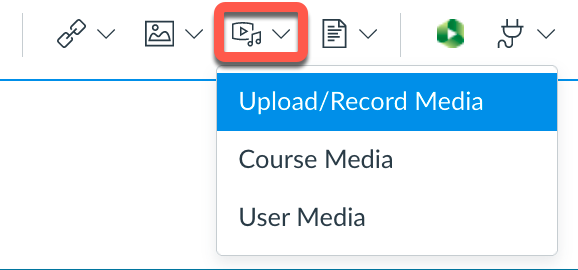
The upload/record media tool lets you insert media files (short audio/video clips) by dragging them into the upload box or browsing to a media file on your desktop. The record media option allows you to record media on the fly using your available camera and microphone devices. Existing media files in your course or Canvas account can also be inserted. Any video content that is stored in your course

Huskycast embed tool in Canvas Rich Content Editor

Huskycast folder can be inserted by selecting the green Huskycast icon. When you click this tool you can browse and select the video session in Huskycast that you want to insert. Remember Huskycast video content is not stored in your Canvas course files area so it does not count against your course file storage quota. We highly recommend that you store all video content in Huskycast and not in your Canvas course files area.

Document insert tool in Canvas Rich Content Editor

Documents

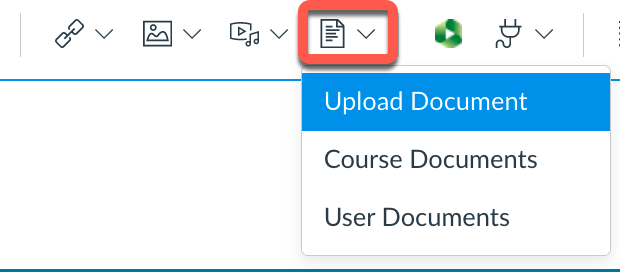
Insert links to existing documents in your course files or drag and drop new document files from your computer into the upload window.

Try it Out

Yes, there are some significant changes in the new Canvas RCE, but once you update your workflows you should benefit from the more robust editing features available. Let us know if we can help.

Resources

Canvas: Rich Content Editor Guides
MTU: New Rich Content Editor


Turnitin Similarity Report offers a new feature!

Image courtesy of Pexels

Turnitin can be applied to a Canvas assignment as a way to detect plagiarism by identifying unoriginal content submitted in a written assignment. When Turnitin is applied to a Canvas assignment, a Similarity Report is generated and uploaded into the Canvas gradebook. This report identifies the percentage of content from the written assignment that matches with Turnitin’s repository of previous student submissions, publications, etc. Upon review of the similarity report, you may notice that some of the exact matches of content are to be expected, such as the assignment instructions or assignment layout that was provided, cited work or valid collaboration. Ever wish you could view the similarity report without these expected matches?

Text Match Exclusion Feature

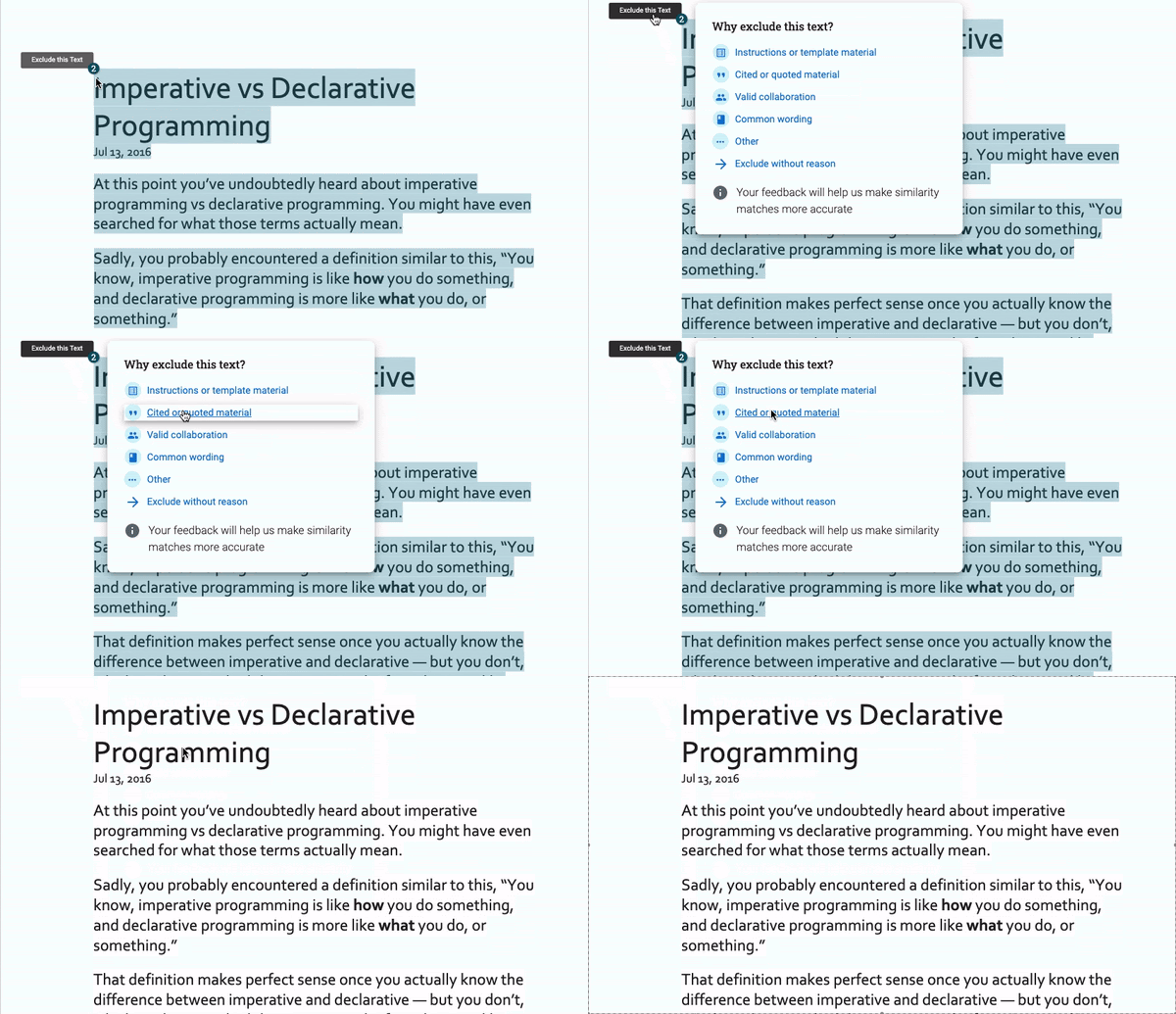
Turnitin has just launched their Text Match Exclusion feature! This feature allows you to do just that. You can select the match you would like to exclude and then click the “Exclude this text” in the upper left corner of the Similarity Report and choose why you would like to exclude it.

Image provided by Turnitin

Re-instate excluded matches

If you decide later on that you did not want to exclude a section of content from the Similarity Report, you can easily re-instate the matched content by selecting Similarity Exclusions from the Right-side panel menu and selecting the “eye” icon.

Interested in learning more about Turnitin or need further assistance in interpreting the Similarity report? Reach out to elearning@mtu.edu with your questions.

January

CTL instructional Awards: Curriculum Development, Katrina Black

Tuesday January 26, 2021 at 3:30PM, Katrina Black will present on curriculum development. Her topic will include how we choose to spend class time and assess student learning should reflect what it means for students to know and do within our disciplines. Although these beliefs are likely to look somewhat different for every discipline (and even every instructor!) there are many principles that can be broadly applied. In this talk, I’ll describe what aligning beliefs about learning to course structure and assessment has looked like in my physics classroom, including rethinking traditional topic order presentation, focusing on in-class group work, getting things wrong on purpose, and standards-based and mastery grading.

To register for this zoom event, click here.

Zoom Features to Support Student Access

If you have been teaching in the past year you have likely spent time (too much maybe?) using Zoom. Two important new features have been released for all Michigan Tech Zoom accounts over the last few months that help support access to your Zoom recordings for all your students. Most recently, live transcription was enabled just in time for Spring semester courses. Previously, an audio transcription feature was added that generates transcripts from completed Zoom recordings. Read on for more details.

Zoom toolbar with live transcript feature highlighted
Zoom live transcript button

Zoom Live Transcription

When conducting a Zoom meeting you now have the option to click the “Live Transcript” button in the Zoom toolbar to enable live auto-transcription in your meeting. Once complete all attendees will see the live auto-generated transcript appear at the bottom of the Zoom screen with options to adjust the size of the transcript text or turn the feature off. If enabled by the meeting host, the live transcript file can also be downloaded by attendees.

Zoom enable auto-transcription button for the live transcript feature
enable the live transcript feature

Zoom Audio Transcripts

In addition to the new live transcription feature, meeting hosts can also have Zoom auto-transcribe completed cloud recordings to obtain audio transcripts. This feature has been available for the past year. It’s great if you use Zoom to pre-record presentations, or when you don’t want to use the live transcript feature. Once you end your cloud recording meeting, Zoom begins the auto-transcribe process and adds the audio transcript file to the cloud recording list in your Zoom account. One added benefit of this feature is that the audio transcript will automatically transfer with the Zoom recording into a designated Huskycast course folder and be available to students from the closed caption (cc) button in the player. This transfer to Huskycast only works if you have requested the Panopto-Huskycast/Zoom integration and are using recurring cloud recordings.

Who Benefits from Transcripts and Captions?

Many people can benefit from having a transcript of class sessions available including the following scenarios:

  • Deaf or hard of hearing viewers
  • Viewers who know English as a second language
  • When content includes new and unfamiliar jargon
  • Consuming content in loud or very quiet environments where regular audio playback is not feasible
  • Can help with concentration for viewers with certain learning disabilities or attention deficits

Remember that automated transcription tools like those available in Zoom are not fully accurate and should not be considered fully compliant solutions for students with formal accommodations for closed captions or transcripts to support their learning needs.

Resources

Zoom Live Transcription Feature
Using Audio Transcription with Zoom Cloud Recordings
Using the Panopto-Huksycast/Zoom Integration


Helpful Tips To Building a Canvas Course

Photo courtesy of Pexels

The start of each new semester brings with it the opportunity to build new Canvas courses for each of your classes. Building these courses each semester may seem a little overwhelming…right? It can be especially overwhelming for those who teach several classes, those who are new to teaching or using a learning management system.

Not sure where to start in building your courses? This blog post will walk you through several helpful tips to develop the basic structure and content of your Canvas course so it will be ready to publish in no time at all!

Re-purpose previous course content

Have you taught this course before? Do you have some great course content you wish you could use again? Canvas provides you the ability to import course content from any previous course where you were enrolled as an instructor. You can import a single assignment or the entire course.

Take advantage of the Homepage Template

Want to create a homepage quickly and easily even without much understanding of the Rich Content Editor? Each Canvas course has a Instructor Info Front Page Template already available for you to use. Simply select the template to be the front page and edit the page to include your course and instructor information. The homepage is also an excellent place to post a link to your syllabus!

Establish Assignment Groups

Course content can be divided into categories (ex. quizzes, homework, projects, etc.) with each category having a defined percentage of the final grade applied to it. These categories are known in Canvas as Assignment Groups. By initially defining the assignment groups, percentage value and course content, Canvas can easily calculate the course grades for you as the semester progresses. Each time you create an assignment, you can designate which assignment group it should reside under.

Plan your course structure

Having a structured organization to your course content can make it easier for your students to navigate through your course. Course content can be easily organized by weeks, units, chapters, etc. using Canvas Modules. The modules can be set up with requirements so students need to work through the content in a specified sequence. Lock/unlock dates can be placed on Modules–this allows the instructor to create and publish content within a module but the content in the module is not visible to students until a defined date.

Familiarize yourself with the gradebook

The Canvas gradebook provides a wealth of detail about course grades. Canvas uses many color codes, icons, views and grading type symbols to convey the detail about each students’ submission/score. It is helpful to take a few minutes to familiarize yourself with the layout of the gradebook as well as the color codes and icons.

Hope these tips prove useful to you when setting up your Canvas courses! Have a Canvas question you need answered? Contact the elearning team at elearning@mtu.edu.

November

Teaching in Uncertain Times
UPTLC Virtual Workshop Series 20-21
Wednesday November 4 @ 3:30 PM

Healthy Professor: Incorporating Practices of Well-Being to Teach Fully and Engage Students Meaningfully
Jody-Lynn Rebek, Algoma U. Business Department

Abstract: The healthy professor is a session that will explain, promote, and demonstrate aspects of holistic health, within the context of higher education teaching and learning, especially in light of COVID19.  The session will illustrate the personal experiences of the facilitator, and explore the impact of incorporating well-being into daily living, including current research.  A particular focus on mindset, attitudes, and perspective via practices such as intention setting, gratitude, and mindfulness will be explored.  Ways to nurture authentic leadership through practices that promote greater self-awareness will also be shared.  Faculty who nurture healthy attitudes and engage in activities that promote well-being, trickle into the classroom setting, impacting students, and others in nurturing ways (Seigel, 2018).

Dealing With Distressed Students
Christina Hartline, NMU Counseling and Consultation Office

Abstract: Students at university and college counseling centers across the country are seeking services with increasingly severe problems and concerns (Centers for Disease Control and Prevention, 2018; American College Health Association-National College Health assessment, 2018). Educators at these institutions are experiencing a change in student needs, academically and emotionally, and are oftentimes expected to know how to manage students with mental health needs. This presentation will provide audience members with education, techniques, and resources regarding dealing with distressed and/or distressing students. The presenter’s background as a clinical psychologist and assistant professor will provide a first-hand account of the role that mental health plays in students’ well-being. Specific areas that will be addressed include an overview of symptoms and behaviors that may suggest a need for intervention, strategies for communicating with students who are distressed or distressing, and education about available resources for students. Audience members will actively participate in case study demonstrations that illustrate useful interventions and have opportunities to explore classroom concerns. The knowledge and skills acquired from this presentation will allow audience members to support students’ social and emotional learning by normalizing and encouraging help-seeking behaviors.

To register for this event, click here.

CTL Presents: Online Course Showcase
Tuesday November 6 @ 3:00 PM

Michigan Tech has made a commitment to making quality online learning opportunities available for working adult professionals from around the country and further.  Even without the demands the current pandemic has imposed upon us, it is important to be able to deliver education to learners that are working full time, have demanding schedules and family obligations or are bound by place for a variety of reasons. Developing and delivering quality, fully online, asynchronous courses requires creating an online experience that is active, engaging, and features frequent and substantial student-student, student-instructor, and student-course material interactions.

Join the Jackson Center for Teaching and Learning on Tuesday, November 10th, at 3:00pm for an opportunity to interact with Michigan Tech faculty who have designed and delivered online courses in Canvas. There will be a showcase by each faculty followed by breakout sessions for questions and discussion.

This event will be held over zoom. A link will be provided when you complete the registration.

October

CTL Presents – Canvas Course Showcase
Tuesday October 27, 2020 at 3:00 PM

The current remote instruction environment has required many instructors to develop new approaches to using Canvas.  Providing students with an organized and intuitive course design, opportunities to engage with peers, and a workflow to efficiently complete course activities is critical.

Make plans to attend a Canvas Course Showcase, hosted by the Jackson Center for Teaching and Learning.  This Zoom event will feature three Michigan Tech instructors who will showcase their Canvas courses and highlight some of the organizational features that help support their students.

This event will be held over zoom. A link will be provided once you have completed the registration.

CTL Presents – De-escalating in the classroom
Friday October 30, 2020 at 12:00 PM

The Center for Teaching and Learning,  in cooperation with Public Safety and Police Services, present De-escalation in the classroom. Students, like instructors, are dealing with exceptional stressors. These agitated states can make interactions with and between students very difficult. If you say the wrong thing, they can become increasingly angered, but if you give in to their unreasonable demands, you may unintentionally create an even more complicated situation. While there is no perfect solution, knowing how to verbally de-escalate “hot moments” in a classroom or other situation might increase opportunity to reach a mutually desired outcome. In this lightly interactive workshop, Reid Devoge from public safety will share strategies and techniques that can be used to resist verbal aggression and ultimately create a situation wherein productive dialogue can occur.  Rob Bishop from Conduct Services will also be present to address questions about how his office might address conduct issues for such situations. and share other relevant campus resources.

This event will be a zoom lunch session. Once you have registered, you will be provided with a link via a calendar invite.