Adjusting the Canvas Dashboard – Do you have a cluttered Canvas dashboard? After time, the Canvas dashboard can be filled with former courses and other Canvas courses to which you have been assigned. To declutter your dashboard: choose Courses from the Global Navigation Menu, then select All Courses, and under Favorites select the star of only the courses you wish to see.
***
Student View – A standard practice to ensure students are able to see all parts of your coursework, Student View is the tool to use! Using Student View allows the instructor to act as a test student to take quizzes, submit homework, participate in discussions, and view the syllabus for example. To use the tool, select the desired course from the dashboard and in the upper right-hand corner choose View as Student. A light purple frame will be around the Canvas instance indicating instructor is in Student View. Participate as the student when when done, either select Reset Student or Leave Student View from the lower right-hand area of the browser window. Reset Student sets the coursework back to the original design and allows the instructor to make adjustments, if needed, and try it again as if the test student never participated. Leave Student View restores the browser window back to the instructor’s account. Instructors will see the Test Student account in the gradebook and can use that for checking Test Student coursework grades and scores.
***
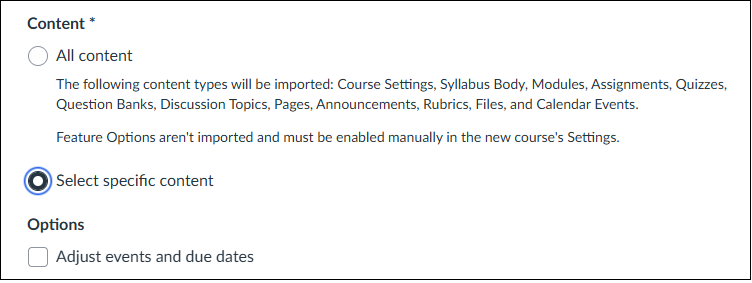
Additional tip: When importing course content from a previous term, refrain from selecting All content; highly recommend using the Select specific content option which allows the instructor to be more methodical about what content is imported. Importing All Content (Course Settings specifically) has the potential to cause issues since options like the grade posting policy, grade schemes, and announcements for example. There is also the chance of overwriting course settings that were default-set in the Canvas course shell for the upcoming term.
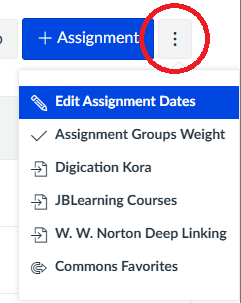
If all Assignments are imported, Due and Available dates will be imported with them. From Assignments on the Canvas Course Menu, choose the three-stacked dots to get to Edit Assignment Dates. From there the instructor can edit them all in one place versus each assignment individually.