Author: Shane Sullivan

Canvas Tips and Tricks!

Adjusting the Canvas Dashboard – Do you have a cluttered Canvas dashboard? After time, the Canvas dashboard can be filled with former courses and other Canvas courses to which you have been assigned. To declutter your dashboard: choose Courses from the Global Navigation Menu, then select All Courses, and under Favorites select the star of only the courses you wish to see.

***

Student View – A standard practice to ensure students are able to see all parts of your coursework, Student View is the tool to use! Using Student View allows the instructor to act as a test student to take quizzes, submit homework, participate in discussions, and view the syllabus for example. To use the tool, select the desired course from the dashboard and in the upper right-hand corner choose View as Student. A light purple frame will be around the Canvas instance indicating instructor is in Student View. Participate as the student when when done, either select Reset Student or Leave Student View from the lower right-hand area of the browser window. Reset Student sets the coursework back to the original design and allows the instructor to make adjustments, if needed, and try it again as if the test student never participated. Leave Student View restores the browser window back to the instructor’s account. Instructors will see the Test Student account in the gradebook and can use that for checking Test Student coursework grades and scores.

***

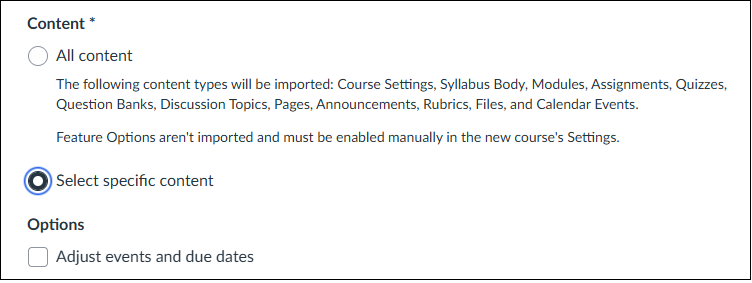
Additional tip: When importing course content from a previous term, refrain from selecting All content; highly recommend using the Select specific content option which allows the instructor to be more methodical about what content is imported. Importing All Content (Course Settings specifically) has the potential to cause issues since options like the grade posting policy, grade schemes, and announcements for example. There is also the chance of overwriting course settings that were default-set in the Canvas course shell for the upcoming term.
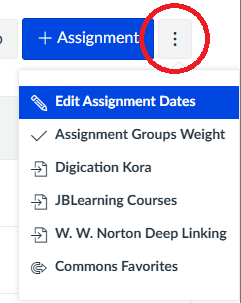
If all Assignments are imported, Due and Available dates will be imported with them. From Assignments on the Canvas Course Menu, choose the three-stacked dots to get to Edit Assignment Dates. From there the instructor can edit them all in one place versus each assignment individually.

How may I best help you?

The beginning of the semester can bring a lot of stress and be overwhelming! To better help you and be available for teaching technology and application consults, starting in the Fall ’25 term I rolled out a Consult Calendar to schedule a time to consult with me which can either be in-person (in a classroom or our CTL office suite) or through Zoom.

An additional way to contact me is to email elearning@mtu.edu with as much information as possible about your issue and I’ll get back to you as soon as I can!

As well, a new Introduction to Tech Teaching Tools – The Basics Canvas course has been created! This Canvas course covers the basics of Canvas and is self-enrolled; the course will eventually contain content for teaching applications supported by the CTL.

Thank you and have a great Fall ’26 semester!

– Sully

Pearson homework platform notice – Scheduled Maintenance Work


IMPORTANT NOTICE TO INSTRUCTORS FROM PEARSON:

October 18, 2025 maintenance information

On Saturday, October 18, 2025 from 1:00am to 9:00am ET the following products will be unavailable:

· Mastering / Modified Mastering courses: You and your students will be unable to access Mastering courses for the entire maintenance window. This includes those courses integrated with an LMS.

· Students will not be able to register for or enroll in any of these courses.

· Instructors will be unable to create new or copy existing courses.

· A maintenance notification will appear at login or when users try to access these courses.

· Revel: You and your students will be unable to access your Revel courses for the entire maintenance window. This impacts all courses, including those integrated with learning management systems like Blackboard, Canvas, Brightspace by D2L, and Moodle.

· Students will not be able to register for or enroll in any Revel courses.

· Instructors will be unable to create new or copy existing Revel courses.

· A maintenance notification will appear at login or when users try to access these courses.

· Content downloaded to the mobile app before maintenance starts will be available.

· Learning Catalytics: You and your students will be unable to access this tool during the maintenance window.

The following products will remain as available, however customers may experience disruptions during the maintenance window due to infrastructure maintenance:

· XL MyLab, MathXL for School, and Mastering Platform Update courses: You and your students will be able to access XL MyLab, MathXL for School, and Mastering Platform Update courses for the entire maintenance window.

o IMPORTANT NOTE: Mastering Platform Update instructors may experience assignment copy and course copy issues during the maintenance window.

· Pearson+: Customers will be able to access Pearson+ for the entire maintenance window. A maintenance notification will appear at login.

· StatCrunch: You and your students will be able to access this tool during the maintenance window.

· IMPORTANT NOTE: While these products will remain available, customers may still experience disruptions during the maintenance window due to infrastructure maintenance. Please avoid any critical assessment activity during this Maintenance.

Respondus Monitor – Show Your Work

The Show Your Work feature in Respondus Monitor makes it easy for students to upload photos of their handwritten work at the end of an online exam. There are no folders to create, no PDFs to generate, no filename conventions to follow – in short, no hassles.

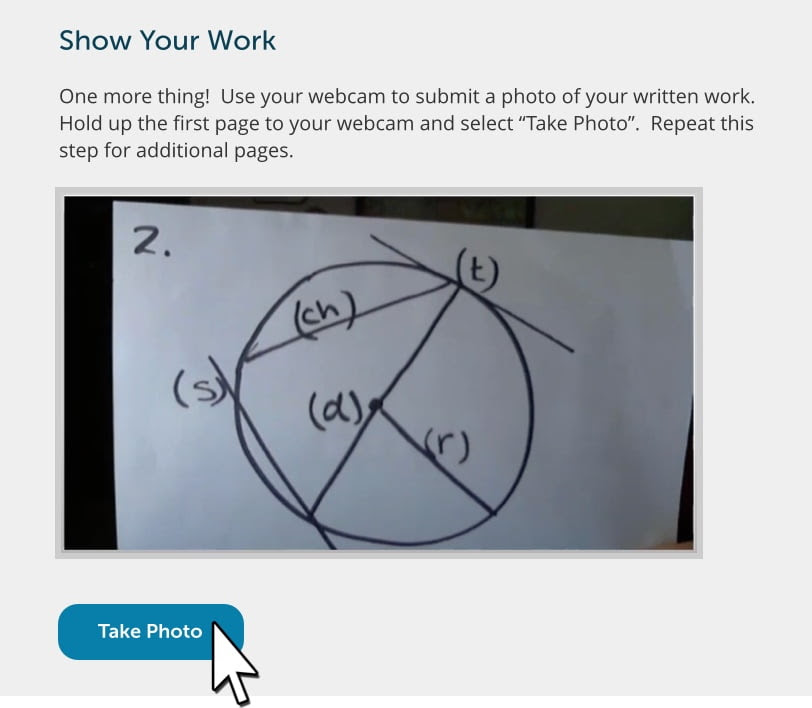
Show Your Work will prompt students to take a photo of their calculations, worksheets, diagrams, drawings, doodles – whatever you require – at the end of the exam.

Here’s how it works:

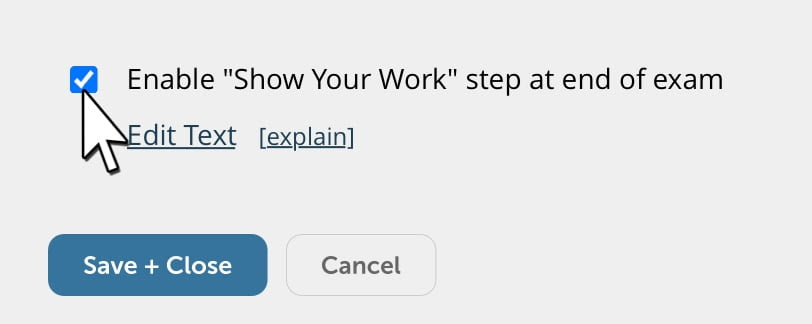
Show Your Work is enabled by the instructor from the Respondus Monitor settings (under Advanced Settings). The default instructions for students can be edited too.

Students take photos of their written work (up to 20) immediately after the exam is completed.

These photos appear in the top row of the proctoring results for the student. Click an image to view a large, high-resolution image of it.

Learn More:

To learn more about Respondus Monitor’s Show Your Work feature in this video.

CTL Services

CTL Services
Ever wonder how the Center for Teaching and Learning can support your instructional needs? We are here with support for any questions you may have about Canvas, Huskycast, Gradescope, Turnitin, Zoom, or iClicker. Already familiar with these but would like to take a deeper dive into some of these technologies or maybe you have never used these and would like to give them a try in your classroom, we would be happy to provide some one-to-one training! Feel free to drop by during our walk-in hours from 10-noon and 1-4pm Monday through Friday. We can also provide in-person consultations in classrooms for classroom teaching technologies. No time to stop by the CTL? Be sure to check out our online resources that can be found on our site in our Teaching and Learning Knowledge Base, Canvas Instructor Guides, and the Getting Started With Canvas sections.

Are you interested in taking a deeper dive into a specific instructional topic? We also have a periodical library available for checkout covering a wide range of topics! Feel free to stop in anytime and review the collection.


Points of interest!
iClicker Cloud – Reminding you that iClicker Classic was retired at the end of 2023 and iClicker Cloud will be the only supported polling software. The student experience will not change and students can still use either physical iClicker remotes or the mobile/web app, though iClicker bases are not in all classrooms. iClicker hardware – student remotes, instructor remotes, and bases – as well as the student mobile app will continue to be supported in iClicker Cloud. Visit the Center for Teaching and Learning’s iClicker resource page to get started using iClicker and for more information on transitioning to iClicker Cloud visit iClicker’s online resource page.

iClicker Groups (Beta) – iClicker Groups is in Beta, a new method of engaging your students with polling: promote discussion, open new lines of communication, and encourage collaboration. Utilizing this part of the iClicker suite divides your participants in groups to work on building a consensus for your polling. You can find the instructor guide at iClicker Groups (Beta).

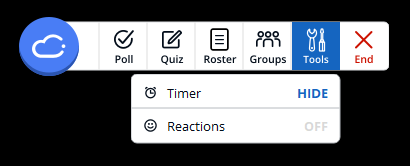
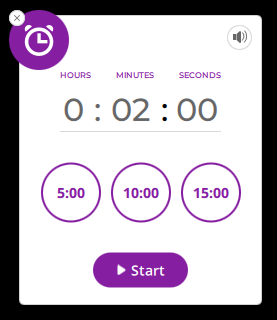
New to iClicker Cloud – With version 7 Tools was introduced to the iClicker Cloud application. The poll taker is able to have a separated clock from the polling menu as well as at a future point be able to enable emoji reactions for poll takers.

If you have any questions or would like to know more, visit the iClicker Groups Instructor FAQ or contact us at the Center for Teaching and Learning for more information.

Feel free to contact us at 7-3000 or email us at elearning@mtu.edu.

Canvas course file clean up with TidyUP from Cidilabs!

Are you looking for a cleaner and a clutter free Canvas course? Our newest application, available only to instructors, is integrated with Canvas is TidyUP from Cidilabs! TidyUP scans the course looking for content that is no longer relevant, duplicated, or could not be accessible to some students; this content must be in use by being embedded or linked to a page in your Canvas course. A great use for this application is if a course is repeatedly copied from term to term and streamlining the content, files, folders files is needed.

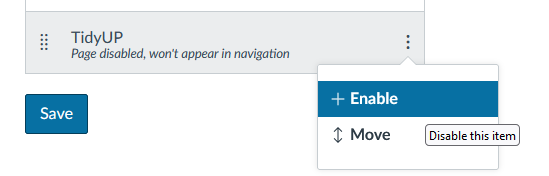
The first step is to get Tidy Up in your Canvas course navigation menu. Choose Settings, Navigation, and scroll down and click the More Options (3 stacked dots) and choose Enable; choose Save when you’re done.

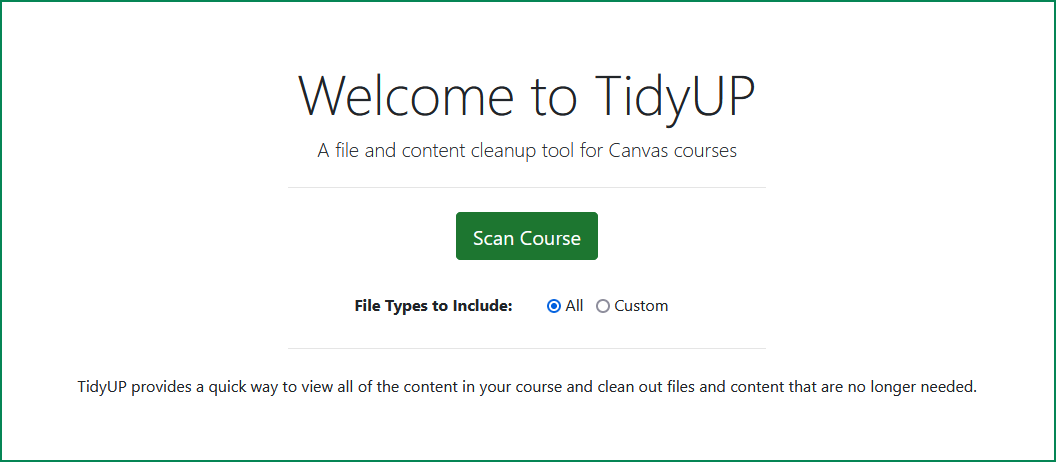
To get started, select TidyUP from your Canvas menu and that brings up the initial splash screen. Scans can be All content or Custom depending on your desired outcome.

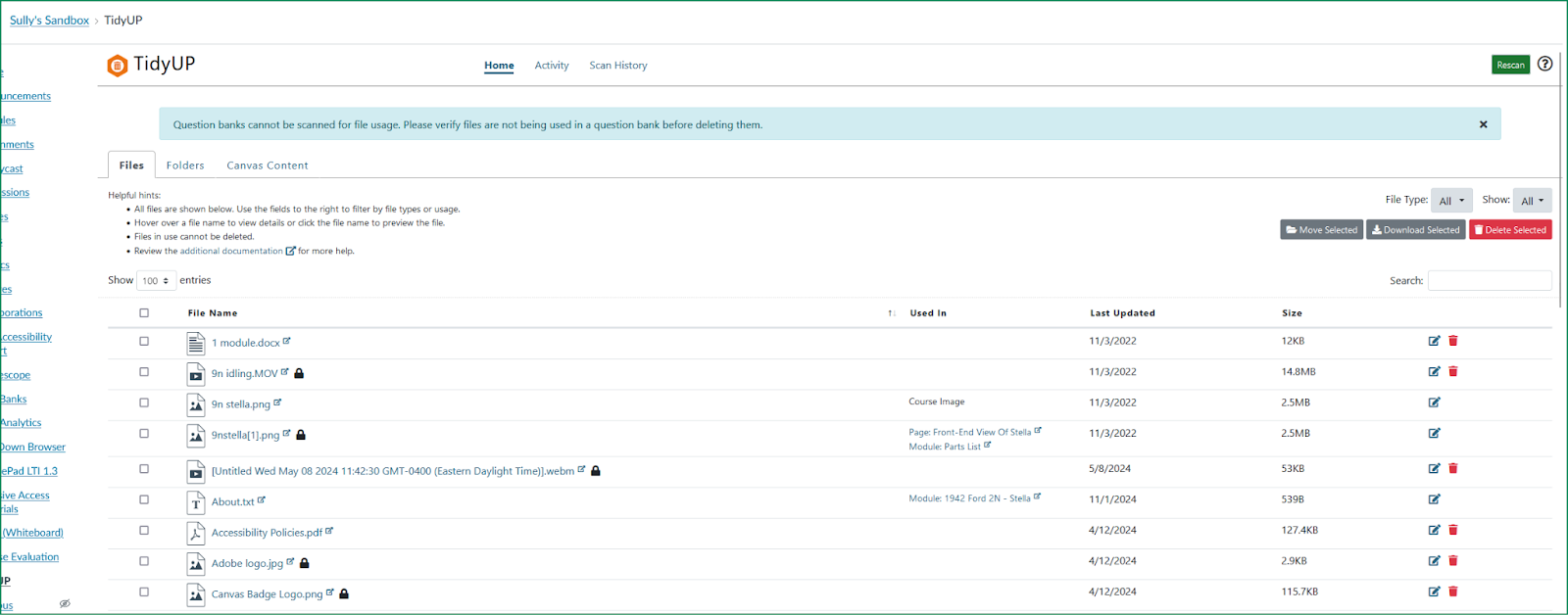
Here is an example of an All content scan using my Canvas sandbox:

From these results I would be able to begin working with my Canvas course content!

For more information and training videos, see Cidilab’s TidyUP videos on their support hub!

CTL Services!

CTL Services
Ever wonder how the Center for Teaching and Learning can support your instructional needs? We are here with support for any questions you may have about Canvas, Huskycast, Gradescope, Turnitin, Zoom, or iClicker. Already familiar with these but would like to take a deeper dive into some of these technologies or maybe you have never used these and would like to give them a try in your classroom, we would be happy to provide some one-to-one training! Feel free to drop by during our walk-in hours from 10-noon and 1-4pm Monday through Friday. We can also provide in-person consultations in classrooms for classroom teaching technologies. No time to stop by the CTL? Be sure to check out our online resources that can be found on our site in our Teaching and Learning Knowledge Base, Canvas Instructor Guides, and the Getting Started With Canvas sections. Our CTL Blog is another great place to get information, especially for upcoming events and workshops!

We also have a wide range of devices for short-term instructional loan such as Surface Pros and iPads. If you’re in need of a microphone or portable document camera to hold a phone or iPad for recording, those are available as well!

iNSwan document camera
IPEVO Uplift Multi-Angle Arm for Smartphones
IPEVO VZ-R HDMI/USB Dual Mode Document Camera
IPEVO V4K Ultra High Definition USB Document Camera
Snowball Ice Plug and Play USB Microphone
Swivl Robot camera with tracking

Are you interested in taking a deeper dive into a specific instructional topic? We also have a periodical library available for checkout covering a wide range of topics! Feel free to stop in anytime and review the collection.

Feel free to contact us at 7-3000 or email us at elearning@mtu.edu.

New tools in Canvas coming this Summer!

Rich Content Editor – Find and Replace

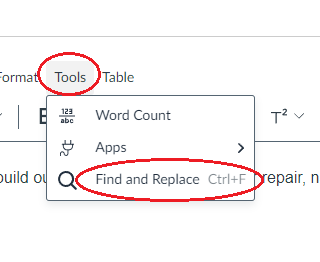
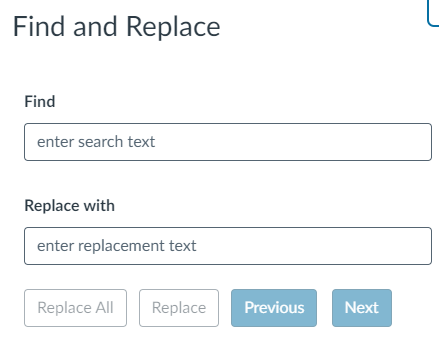
A longtime requested tool from the Canvas community is nearly here! If you’re a Canvas user and you’ve created a quiz, discussion, or assignment, you’re probably familiar with the Canvas Rich Content Editor tool. Coming next month as a Canvas update, the RCE tool will have a new plugin tool Find and Replace which will work throughout Canvas wherever the RCE can be utilized. It will be similar in functionality to Find and Replace in other applications. When it’s available, choose Tools from any RCE toolbar and enter the text you’d like to find and replace; it’s quick and simple! 

Find and Replace tool in Canvas's Rich Content Editor toolbar.
Find and Replace interface.

Discussion Redesign

This video from Instructure will share with you the updated features to include Full and Partial Anonymity for Graded Discussions, Improved Accessibility, Split View, Reply Reporting, and Quoting and @ Mentions along with all the existing functions! Additional information is available from Canvas here! Whatever your role, this information will ensure you make the best use of the Discussion redesign; stay tuned for more information!

Organizing the Canvas Gradebook

The Canvas Gradebook helps instructors easily view and enter grades for students. Depending on the Grade display type, grades for each assignment can be viewed as points, percentage, complete or incomplete, GPA scale, or letter grade. Only graded assignments, graded discussions, graded quizzes, and graded surveys that have been published display in the Gradebook. Not Graded assignments are not included. (Source: more Gradebook information from Canvas)

Did you know there were several options within the Canvas Gradebook to make the grading process easier and the instructor’s gradebook more organized? Utilizing the Canvas Gradebook keeps your students apprised of their academic standing in the class and keeps the course grades organized and in one place.

Organizing Gradebook columns:

From the Canvas navigation menu, choose the Gradebook. Columns can be arranged to suit instructional needs. Place the mouse cursor over a column, press the left mouse button and hold it, and move the column to the desired location.

There are additional options under the three stacked dots (More Options) on the right hand side of the column header for coursework. Using the Sort by you are able to sort scores in ascending or descending order or by submission status.

From the More Options, instructors can adjust the Grade Posting Policy for that particular assignment or quiz.

Gradebook View Options:

From the Canvas navigation menu, choose Grades and then from the upper right hand choose the Gear\View Options.

The View Options tab allows filtering and sorting of the Gradebook according to viewing options:

  • Arrange By: arrange columns by default, assignment name, due date, points, or module.
  • Show: show or hide the notes column, the unpublished assignments column, the split student names column, hide assignment group totals, and hide total and override columns.
  • Status Color: view and change the color for a grading status (late, missing, resubmitted, dropped, and excused).

New column available in the Canvas Gradebook:

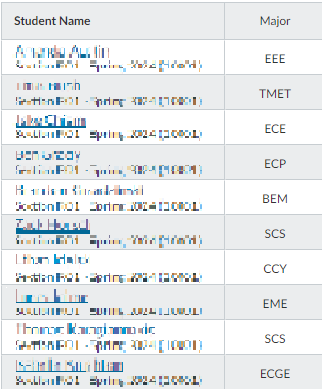
If you’ve looked at your Canvas Gradebook recently, you may have seen a new column just to the right of the student names; the new column is Major and lists the student fields of study.  Please note: the column is not able to be moved or hidden and will be available for Michigan Tech courses starting Spring 2024.

If you have further questions about utilizing the Canvas Gradebook, feel free to reach out to the Jackson Center for Teaching and Learning at 487-3000 or email us at elearning@mtu.edu.

Early Term Surveys

Is your Early Term Survey ready for your students? The fourth and fifth week of the term is right around the corner and it’s your opportunity to gather valuable and constructive anonymous feedback from your students about your instructional processes; the survey results provide a roadmap for pedagogical adjustments early in the term. Both the Provost and the University Senate (Policy 505.1) advocate for distributing an Early Term Survey.


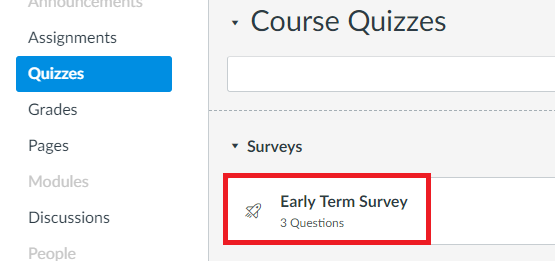
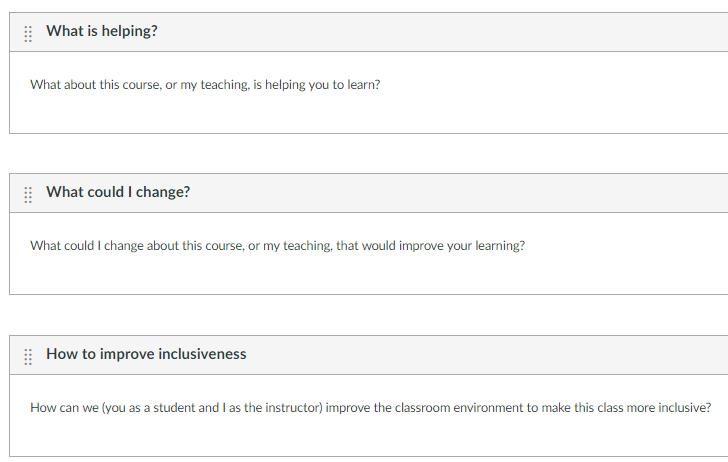
In each Canvas course shell, an Early Term Survey resides within the Quizzes section. Three default questions are provided; however, instructors have the ability to add, delete, or modify the survey questions based upon the type of feedback they are seeking. Creating a survey question is the same as creating a Quiz or Assignment.

Once an instructor is satisfied with their questions, the quiz can be published and accessed by the students during the allotted time frame. 

After the surveys are complete, instructors are able to see the results through Moderate This Survey.

For more information and general guidelines about the Early Term Survey, please refer to the Faculty Handbook.

If you have further questions about administering the Early Term Survey or would like to discuss ways that you can successfully apply the feedback to your course, feel free to reach out to the Jackson Center for Teaching and Learning at 487-3000 or email us at elearning@mtu.edu.