
Non-Payroll Direct Deposit allows Michigan Tech to deposit non-payroll payments (such as travel expenses, flexible spending accounts, business meals and banquets) directly into your bank account.
Follow the steps below to set it up.
Prefer a visual walkthrough? Watch this quick tutorial.
A printable handout is also available for download.
Important: Non-Payroll Direct Deposit is separate from payroll or stipend direct deposit.
Step 1
Log in to Experience using your Michigan Tech username and ISO password.
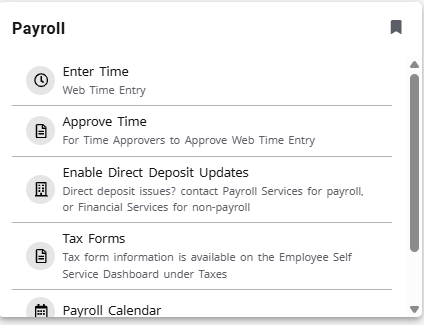
Find the Work tab from the top menu bar and scroll down to find the Payroll card
Step 2
From the Payroll Card, select Enable Direct Deposit Updates.

Step 3
You will be prompted to enter your banking details.

Step 4
After entering your information, click Enable Direct Deposit Access.
Step 5
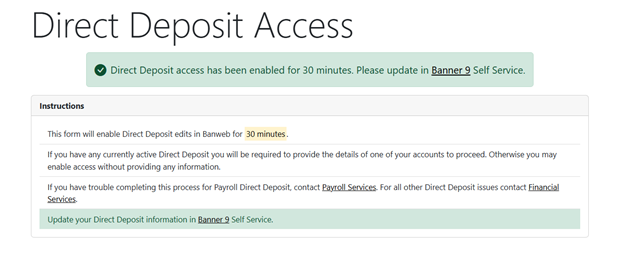
Once your information is saved, a confirmation screen will appear.
Note: Direct Deposit access is available for 30 minutes.
Step 6
From the green confirmation message click on Banner 9 to finish setting up your direct deposit.

Step 7
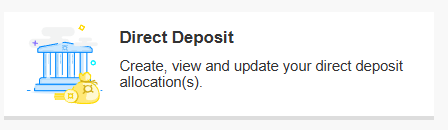
Once Banner 9 opens, select Direct Deposit.
Step 8
Scroll down to the Accounts Payable Deposit section and select Add New.


Step 9
You may choose an existing bank account already on file for payroll or select Create New to enter new banking information.
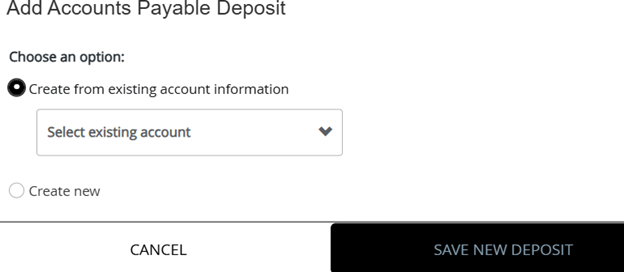
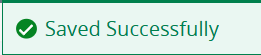
Enter the required banking details and click Save New Deposit.
A confirmation message should appear in the upper right corner of the screen
Step 10
Confirm Your Account Status
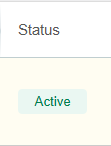
To verify that your Non-Payroll Direct Deposit is active, locate your account under Accounts Payable Deposit and check the status on the far right.
Need Assistance?
If you need help at any point, please contact Payroll at 906-487-2130 for assistance.