
There are four button colors that can be used in the CMS. They can easily be created when you set up your link, or you can use the Buttons in a Row snippet to create multiple buttons in a row.
Primary Button
Good for calls-to-action, think of it as a main purpose for a user on a page, especially when you want the user to perform an action. You can find an example on our Apply page.
Secondary Button
This button complements a primary button in some format. Generally, you only use this button if you already have a primary button somewhere on your page.
Styled Buttons
If you’re looking to have a link that is a bit more stylized but not necessarily a call-to-action, blank or teal are good options. Blank is the default button style in the Buttons in a Row snippet, the RSS Feed Combined snippet, and the Top Title option of the H2|H3 Stylized Headings snippet.
Creating a Single Button in the CMS
JustEdit Editor in an Editable Region
- Type the text you want to be in the button.
- Select the text and choose the Insert/edit Link icon from the toolbar.

- Enter the URL for the button to link to or select the appropriate CMS link using the file picker.
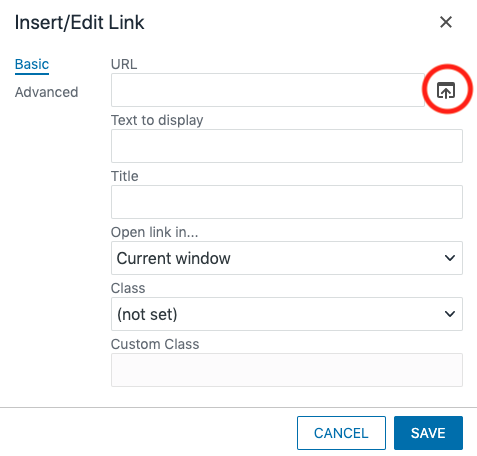
- From the Class dropdown at the bottom of the window choose “Link Button Yellow,” “Link Button Black,” “Link Button Blank,” or “Link Button Teal.”
- Click the Save button.

Button in Editable Region
“Mini Editor” in an Asset or MultiEdit Content
- Type the text you want to be in the button.
- Select the text and choose the Insert/Edit Link icon from the toolbar.
- Link the text using the Link URL field.
- In the Class field choose (custom).
- Enter the appropriate button code in the Custom Class field (without quotation marks).
- “button” for a yellow button
- “button-black” for a black button
- “button-blank” for a blank button
- “button-teal” for a teal button
- Insert.

Button in Mini Editor
Creating Multiple Buttons in a Row
Use the Buttons in a Row Snippet to create multiple buttons in a row.