
Use these snippets to insert the base code for a table that includes the correct code for accessible table headers and the heading row styling. Different options for the headings are available based on the layout you need. The table title can be turned off, the auto striped styling can be changed, rows and columns can be added, and a footer can be added.
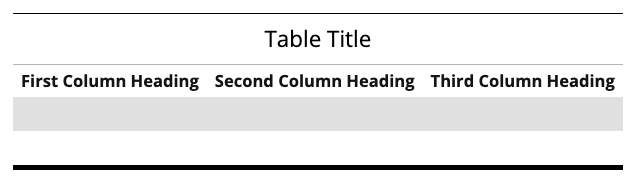
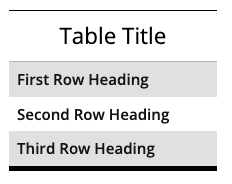
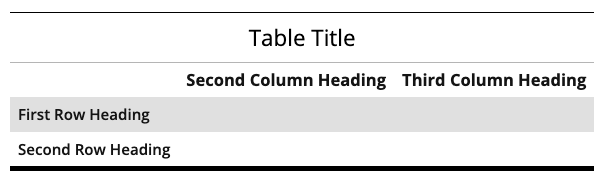
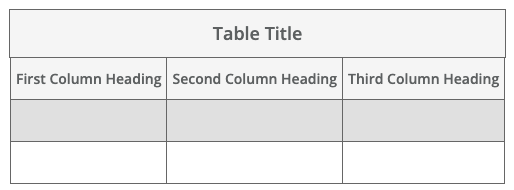
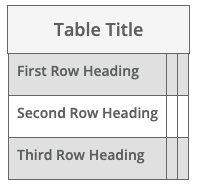
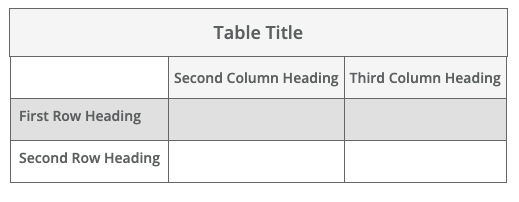
View tables in the Style Guide and see more information about creating and styling tables.
- Insert the appropriate snippet depending on what type of headings you need.
- Table Code Column Headings
- Table Code Row Headings
- Table Code Column and Row Headings
- The base code for the table is added to the page.
- Add the needed information to the table.
- To turn off the Table Title (Caption):
- Right-click in the title and select Table properties.
- Find the checkbox for Show caption and uncheck it.
- Save.
- To change the table style from auto stripe to something else:
- Right-click in any cell and find the Custom Class field.
- Change the text in the field to the desired layout as described in the post about creating and styling tables.
- To remove the styling completely, delete the text from Custom Class and change the Class field to (not set).
- To add rows or columns:
- Right-click in a cell next to where you want to add a row or column.
- Under either Row or Column, select Insert row/column before or Insert row/column after.
- If you added a column and you have column headers, you must also right-click on that new column’s header cell, go to Cell > Cell properties, and select Column in the Scope field.
- To add a table footer, follow these steps after you have added all other content, rows, columns, etc. to the table.
- Right-click in a cell in the last row of the table and under Row, select Insert row after.
- Right-click in a cell in the new last row that was added and under Row, select Row properties.
- Change the Row type to Footer.
- Save.
- Select all cells in the last row, right-click, and under Cell, select Merge cells.
- To turn off the Table Title (Caption):