
This snippet is used to put a list of faculty and staff on a page with different format options. You must first create a Personnel Information item for each person within the site being edited. If you want a heading, for example when you are listing multiple employee groups on one page, include an H2 Top Title or H2 Graybar snippet before this one.

- Manual Order: To specify a manual order of some employees at the top of the listing or manually order employees, list them by user ID, in the desired order, and separated by commas in this field. Employees listed in this field are no longer alphabetized with the others, they are at the top.
- Insert Additional Alphabetically: To include additional employees in the alphabetical listing whose personnel items are within a different folder path, list them by user ID separated by commas in this field.
- Path: To pull an alphabetical list of all personnel information items within a folder and all of its subfolders, type “folder” (without quotation marks), insert a link, and select the folder that contains the Personnel Information items.
- If you are including employees in either Manual Order or Insert Additional Alphabetically and you do not want any additional employees listed, type “folder” (without quotation marks), insert a link, and select a folder in your site that does not include any Personnel Information items, such as an images folder.
- Type: This field will determine the formatting of the listing.
- Select Directory for a basic faculty/staff listing layout. When using in an asset, you must type in “directory” (without quotation marks).
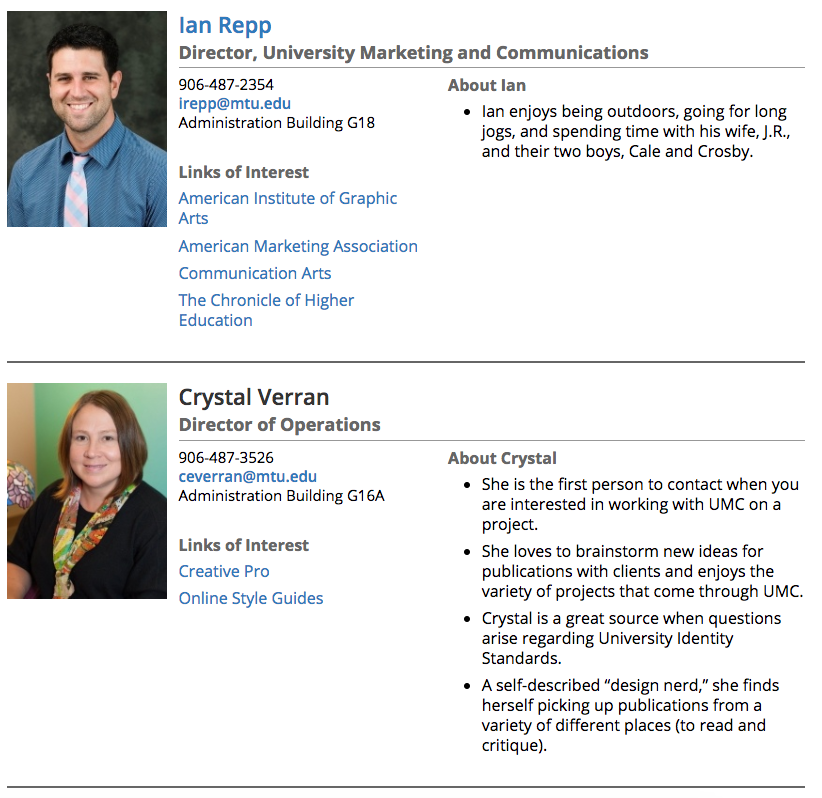
- Select Random Focus to display a random person that changes when the screen is reloaded. This version should only be used in a 2-column Boxed Sections snippet. When using in an asset, you must type in “focus” (without quotation marks).

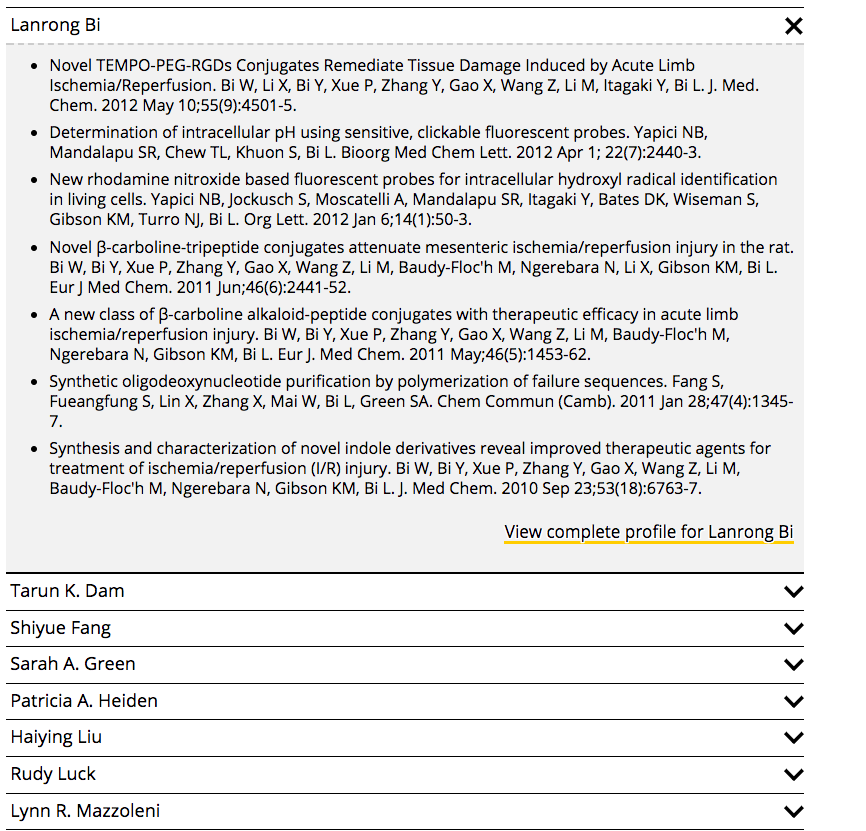
- Select Publications to list faculty publications in sliders. When using in an asset, you must type in “publications” (without quotation marks).
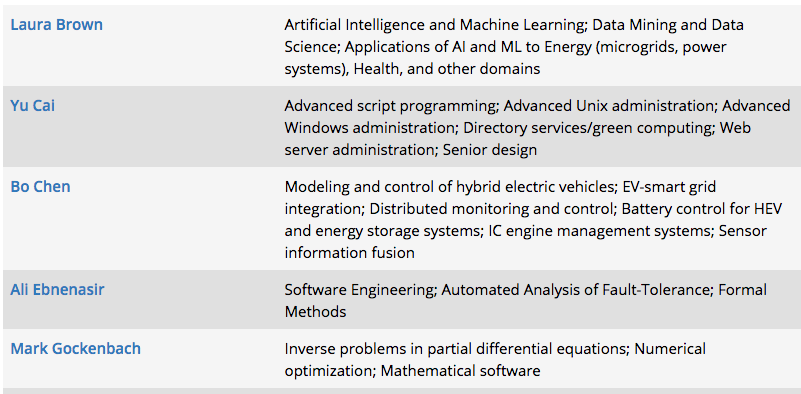
- Select Research to list the person with their research interests in a table format. The research interests are pulled from the Right Specialties region. When using in an asset, you must type in “research” (without quotation marks).
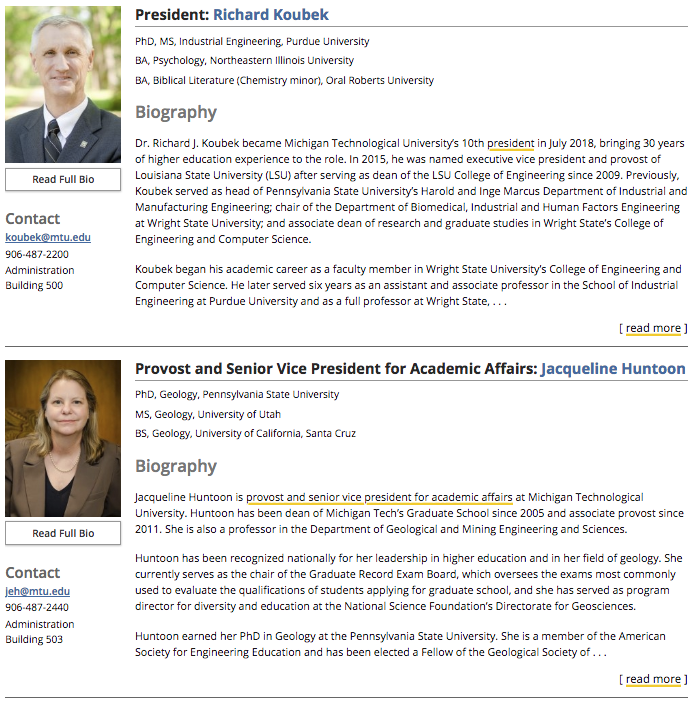
- Select Biography to list truncated biographies with links to the full pages. When using in an asset, you must type in “bio” (without quotation marks). This is typically only used on the President’s website or other VP-level listings.
- Select Directory for a basic faculty/staff listing layout. When using in an asset, you must type in “directory” (without quotation marks).