
This snippet is used to list one person on a page with different format options. A Personnel Information item for the individual must already exist within the website being edited.

- User ID: Type the user ID for the person you want to display. This user ID must match the ID, if entered, or email address from their Personnel Information item.
- Type: Select the format you want to use to display the person.
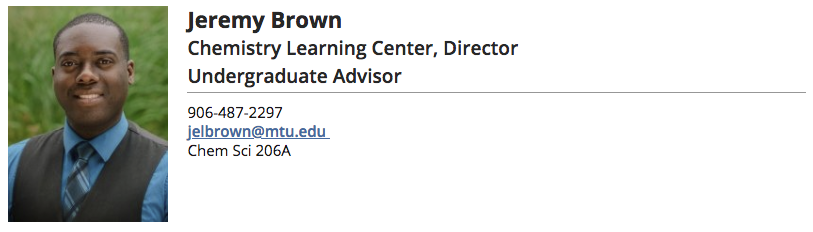
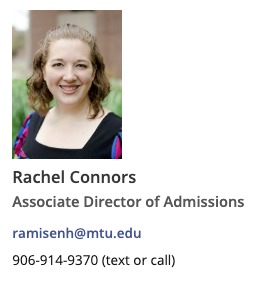
- Contact Body (in the Main or Additional Content regions) or Contact Sidebar (in a Sidebar Right Boxed snippet) will display the person’s photo, name, title, phone, cell phone, email, and location. If the personnel item has no photo, there will be no image displayed. When using in an asset, you must type in the desired option, “contact” for the Body version or “contact-sidebar” (without quotation marks).
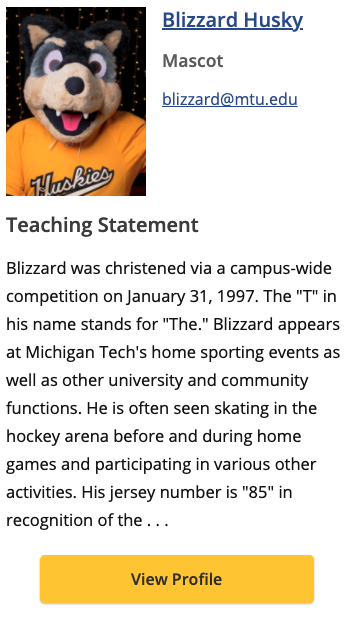
- Teaching Statement will display the Photo, Name, Title, Email Address, and Teaching Statement fields for the person. This layout works well in a bordered column of a boxed section. When using in an asset, you must type in “teaching-statement” (without quotation marks).
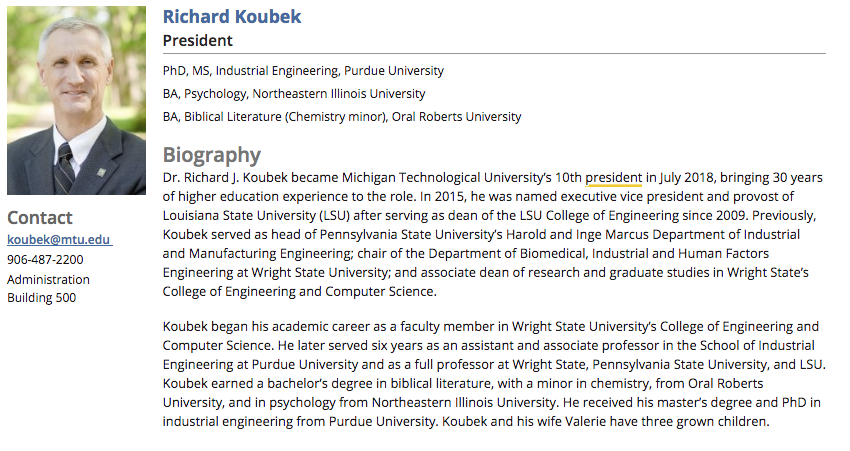
- Biography will display full biography information for the person. When using in an asset, you must type in “bio” (without quotation marks).
- Contact Body (in the Main or Additional Content regions) or Contact Sidebar (in a Sidebar Right Boxed snippet) will display the person’s photo, name, title, phone, cell phone, email, and location. If the personnel item has no photo, there will be no image displayed. When using in an asset, you must type in the desired option, “contact” for the Body version or “contact-sidebar” (without quotation marks).
Play Faculty|Staff Content Single Snippet video
