Category: Registered Student Organizations

Hosting Your RSO Elections on Involvement Link

Organization officers have the ability to create elections within their organizations. To create an organization-based election, follow the instructions below.

Defining Election Parameters

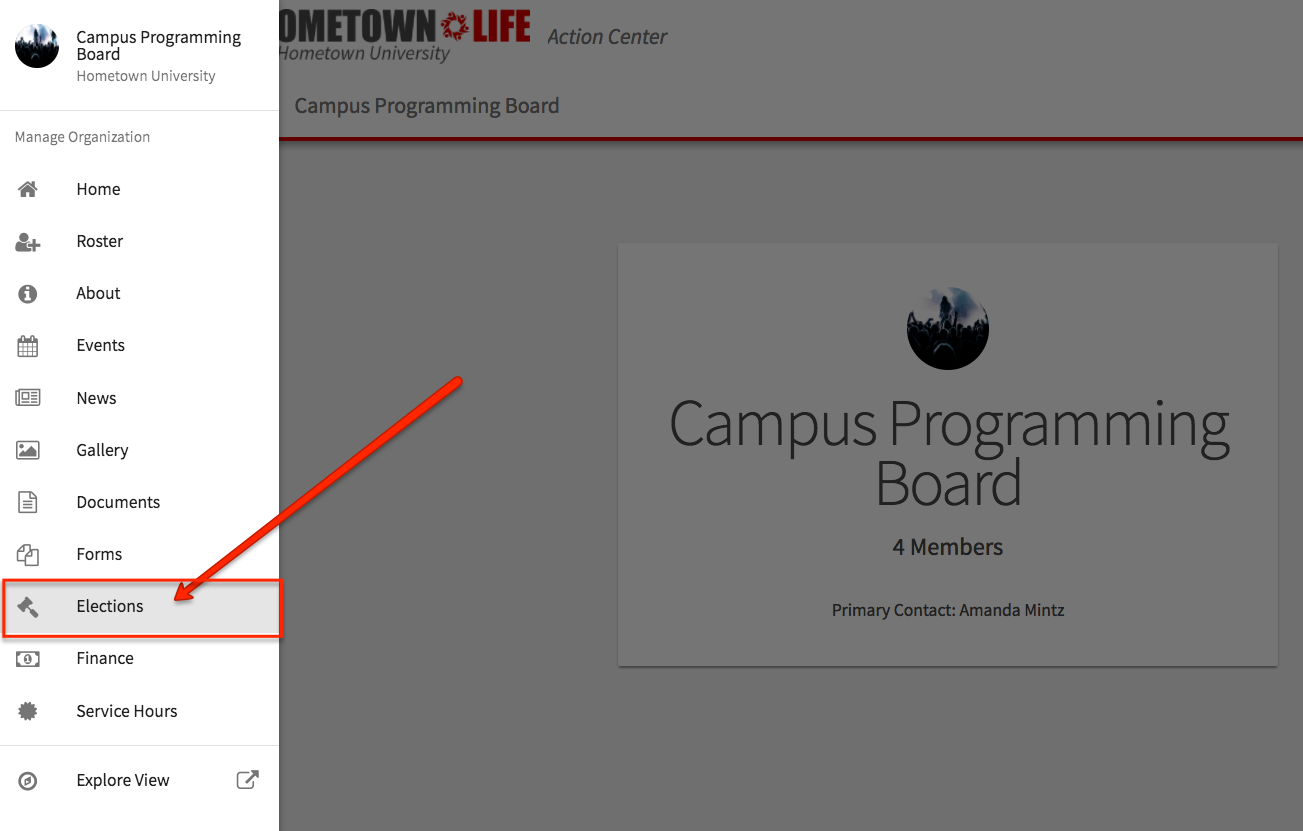
Head to the Action Center for your organization, and then click on Elections in the organization tool drawer. If you do not see this tool you do not have access to manage this tool for your organization.  From here, click the Create Election button.

Identify the Name of the election, if it should include instructions and any additional (custom) instructions that should be included.
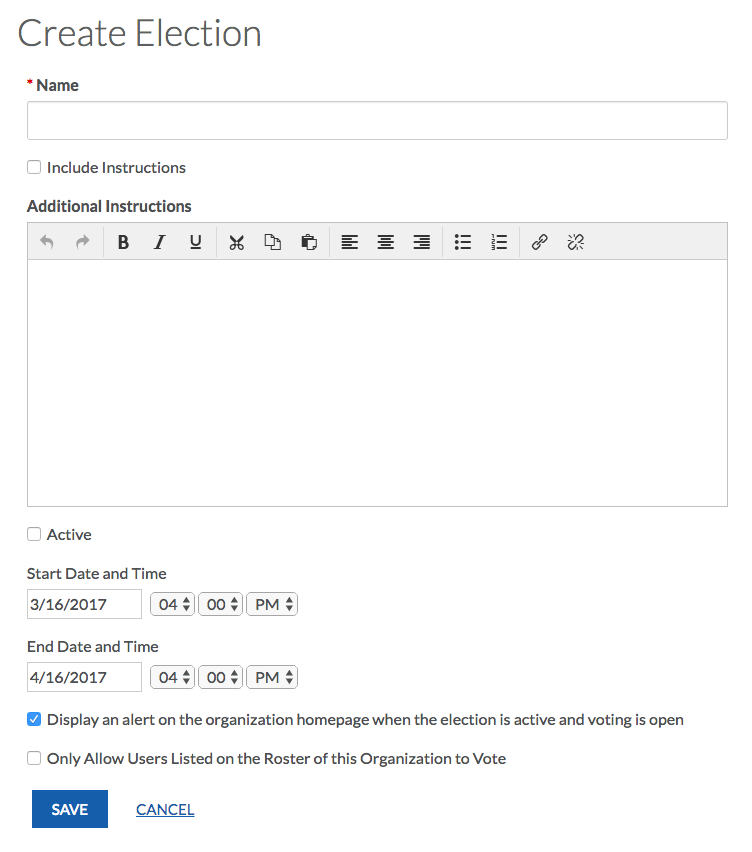
Below that, you can choose if your election should be active and the date range your election should be available. When the election is set to Active and it falls within the date range, users will be allowed to access the ballot.

You can also choose to display an alert on the organization’s homepage when the election is active and voting is open by checking the next box. The last option is whether or not to allow users outside your organization should be allowed to vote in the election– checking the box will limit it to only users within your organization roster.

When you’re finished with these settings, hit Create.

Setting up the ballots

You can create as many ballots as needed. Each ballot can be accessible to the general user population or any number of eligibility lists. A user will see each ballot they are designated to see. To start creating your ballots, click Create Ballot.
elections1.png

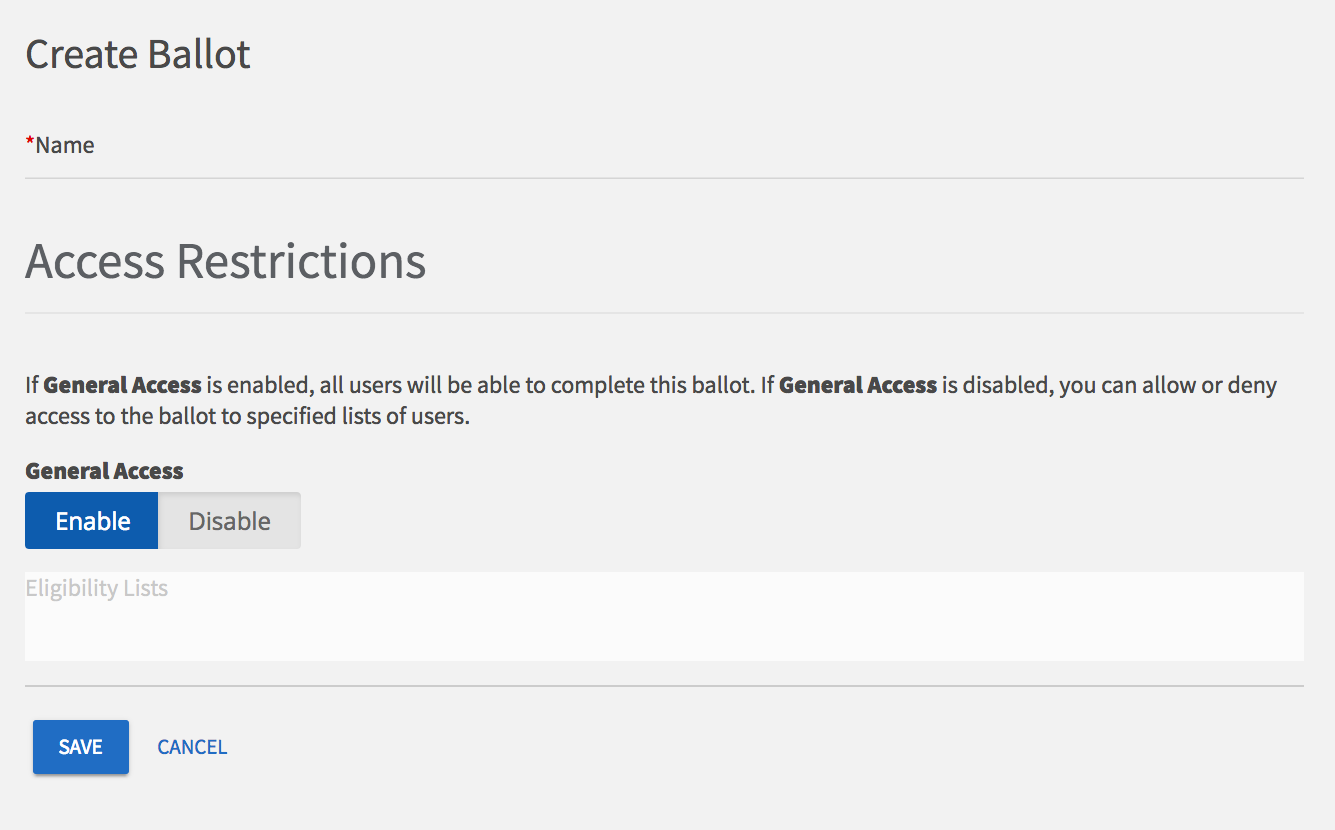
Enter the name of your ballot, then determine if the ballot should be general access by selecting Enable or Disable. If you select Disable, you’ll be prompted to enter settings for each of the available eligibility lists.

Eligibility lists are set up by campus administrators and are shared to organizations. If you are not seeing an eligibility list that you expect to see, contact your campus administrator.

Setting Definition
Allow Users on the list can access the ballot
Deny Users cannot access the ballot, and supersedes being on an allowed list
Ignore List will not be used for the ballot, users cannot access the ballot

Once you’re fine with your eligible users access, click Create to advance to the next page. You’ll now be taken to the form builder with a limited selection of question types.

Please see Form Building for complete instructions on creating or editing questions. The builder will automatically save your progress as you create questions. At any time, you can revise the title and access of your ballot by clicking Form Properties in the upper right corner.

When you’re finished, click Back to Ballots in the upper left corner. Repeat this for any additional ballots you need to create within the same election. Once all your ballots are ready, be sure to set your election to Active to ensure users can vote when the election starts, and the prompt to vote will display on your organization homepage if requested.

Seeing the Election Results

Navigate to your organization’s Action Center through the Manage view of your switchboard. Open up the organization tool drawer and select Elections. 
org_election_results.png

Select the election you want to view. From there, you can click on the Results tab to browse the ballot results.

org_election_results_2.png

You can select the “Export All Votes” button to download your results into an excel file or you can view the snapshot of the current results displayed on the “Results” page. Click on a specific ballot in order to view individualized ballot response counts. The option to Export All Voters will only appear for community administrators and will not appear for general organization officers.

K-Day 2020 Registration – RSOs

As a registered student organization, you can register for both the virtual and the in-person K-Day. We recommend that at a minimum, you should register for the virtual K-Day. K-Day registration will close Friday, September 4 at noon.

For virtual registration:

  • Log in to Involvement Link
  • Select the organization you would like to register for virtual K-Day
  • Select “Manage Organization” from the top right corner
  • You should see “Upcoming Virtual Fair Events” with the K-Day information and a blue button that says “Sign Up”  Click that to complete your registration.

You will need a short description and a link for a Zoom (or virtual platform of choice) meeting.  The virtual meeting should be set up for Friday, September 11 from Noon – 5 PM.  Prospective members will be able to select “Meet Online” during that time for your organization and talk to officers/members that you have on the call.  If you cannot have someone on the virtual call for the entire 5 hours, please note the times you will be there in your description.  Students will only be directed to use the meeting link from Noon – 5 PM on that day.  

**You will not be able to edit your description, so please make sure it is what you want.  Also, it has a 200 character limit. 

For in-person registration:

You can register through Involvement Link.  Once you log in, the link will be on your homepage.  Some things to note:

  • Your organization will get to choose their top 3 dates/times, but you will only be able to have a table once. 
  • There is a limit on the number of organizations that can be approved, so your organization might not get a space.  
  • If your organization wants to bring food, it must be pre-packaged.
  • Minimal activities will be allowed.  They must be compliant with University policies, as well as local, state, and federal expectations in regards to COVID-19. 
  • You are allowed to have 1 or 2 people from your organization at your booth.  No more than 2 will be allowed at a time. 
  • Power is limited and we cannot guarantee it. 
  • Once your registration is confirmed, you will receive more information on expectations for the day of your event. 

Please send any questions to Rochelle at raspence@mtu.edu.

Involvement Link: Creating a New Event

Involvement Link has many great features to help your student organization be successful including the calendar. To feature your organization’s event on the calendar (and on the Michigan Tech Calendar!), just follow the steps below.


Note: Only primary contacts and positions with full access over Events can create events within an organization. If you do not have the proper permissions, you should first refer to your primary contact or your site administrators in order to request the required access.

Manage your organization by selecting Manage from the switchboard and choosing your organization. When you are at your organization’s page, use the top left-hand side menu. Choose Events in the organization tool menu and click on the blue Create Event button on the top right.

Completing Core Event Details

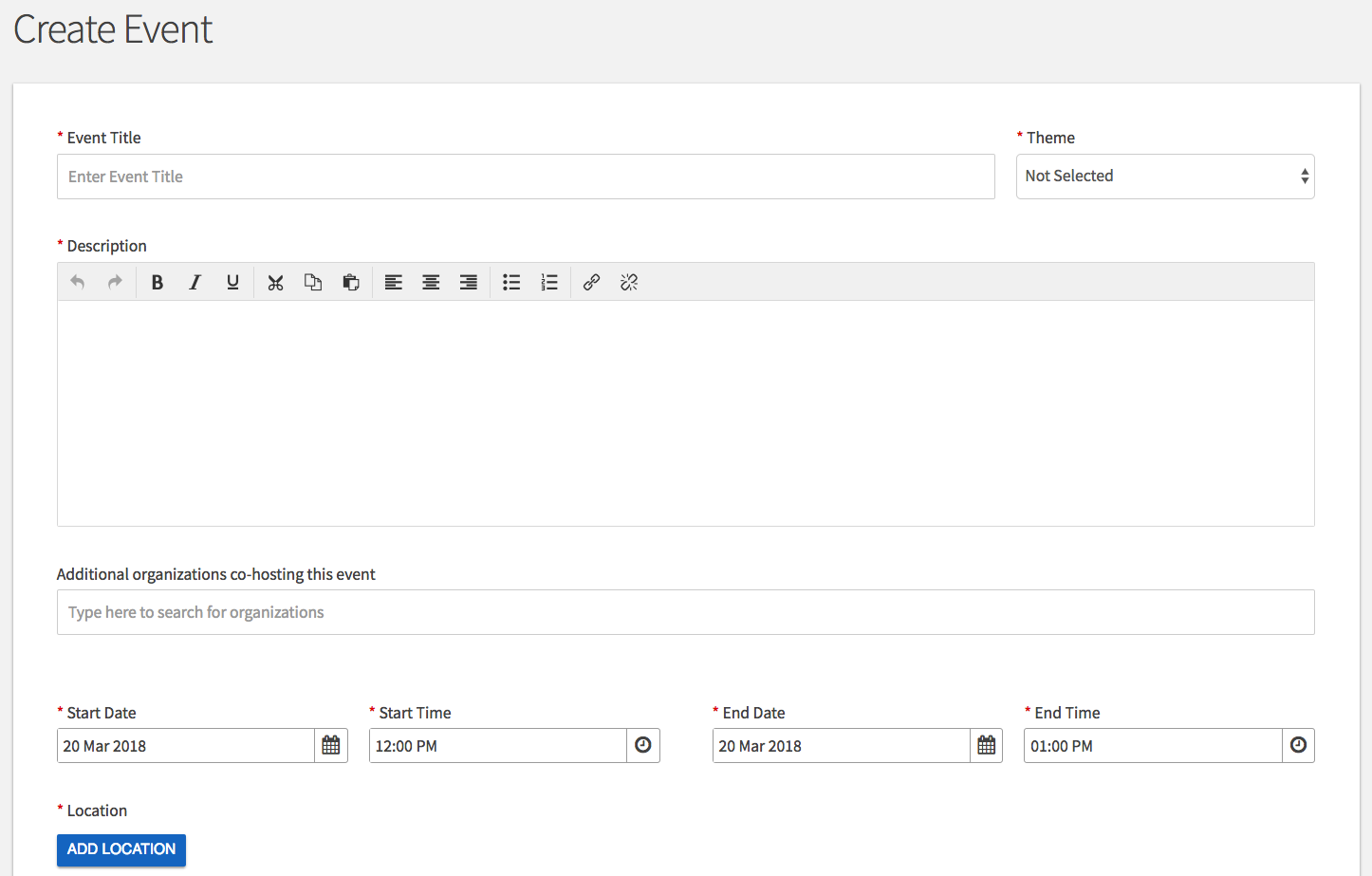
Enter an event title, theme, description, start and end time, and location into their respective boxes. You can also identify if the event will be co-hosted with other organizations. Required fields are marked by the red asterisk at their start.

a screenshot of the first section of the create event sccreen

You can add up to 18 different times/locations within one event submission. Upon approval, each instance of the event you created will become its own event that can be individually edited or changed. Click “Add Another Date” to create a recurring event.

You can also choose whether to include a helpful map, courtesy of Google Maps, to your event details page. Note that selecting the space will not reserve it. Your next couple of options are about event visibility and are outlined below.

Each field after this point is detailed below:

Field Description
Show-To Determine whether the event should show to the public, authenticated users only, only members of hosting organizations (and cohosting organizations), or only to invited users
Event Categories Associate the event with one or more event categories
Perks Associate the event with one or more event perks (special benefits for your attendees) 
Additional Information Complete any additional fields that may be required by your campus. Depending on your institution’s settings, your responses to these questions may show publicly on your published event page. 


Additional Pages and Event Questions

The next page allows you to customize your RSVP settings. Use this tool to collect information from your attendees before the event or to set a specific attendee limit. 

The third page allows you to customize your event’s cover photo by clicking Choose File and adding an image that you feel will draw attention to your event. We recommend a photo that is 1024px by 600px or larger, under 10MB, and of one of the mentioned formats (JPG, JPEG, GIF, or PNG). The image will run through an image re-sizer, so the larger – the better! If you choose not to upload a photo, a default photo will be chosen for you based on the theme of your event. As this photo will be displayed alongside event details across Engage, it is best to choose a cover photo that is simply an image without text. 

When you’re ready, advance using Next or Skip. Your organization’s branch may require each event submission to provide additional details that will be kept on the private record of the event submission. You will be prompted at this time to complete this information. Fill out the rest of the form and submit for campus administrative approval.

Involvement Link: Changing Your Organization’s Profile Picture

Involvement Link has many great features to help your student organization be successful . Make sure you are keeping your student organization site updated – including the profile picture!


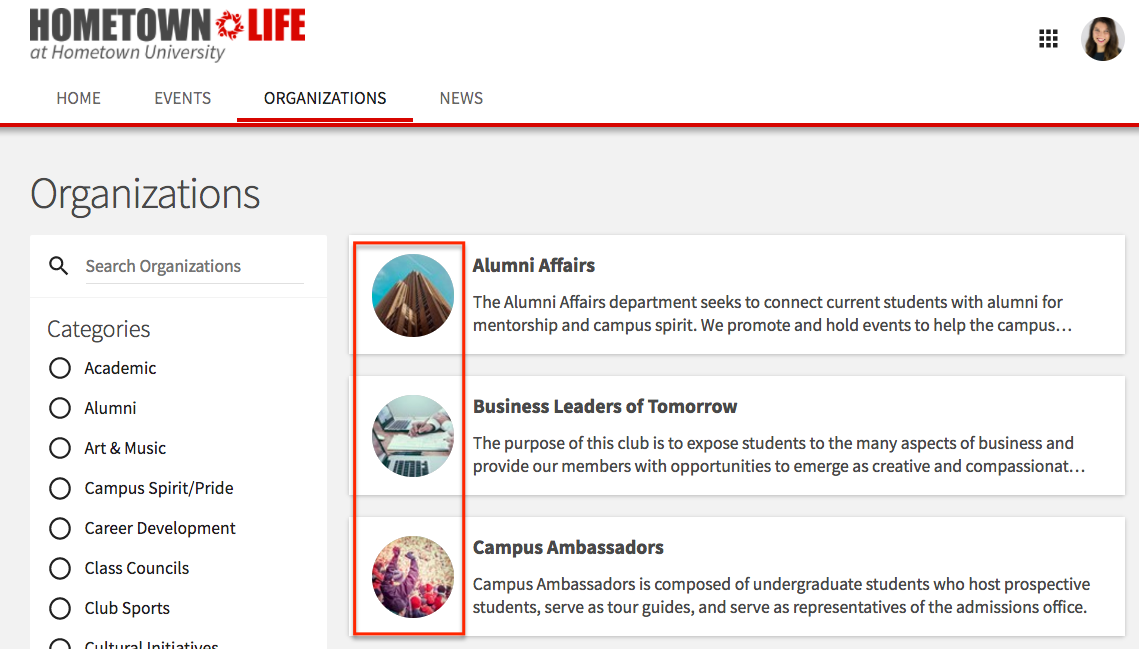
Your organization’s profile photo appears next to your organization in the directory. 

profile_photo.png

The photo also appears at the top of your organization’s public-facing page.

profile_picture_2.png

Note: You must be the Primary Contact of your organization or have officer rights to make changes to your organization.

If you meet this criteria, you can change your organization’s profile picture navigating to your Action Center by accessing the Manage view of your Engage Switchboard. Select your organization and open the organization tool drawer. Select the About tab along your organization’s tool drawer. Upload the image under the section labeled Profile Picture. Your image will be sized to fit. Keep in mind that since the photo appears in a circular shape throughout the site, edges of square and rectangular images will be cropped.