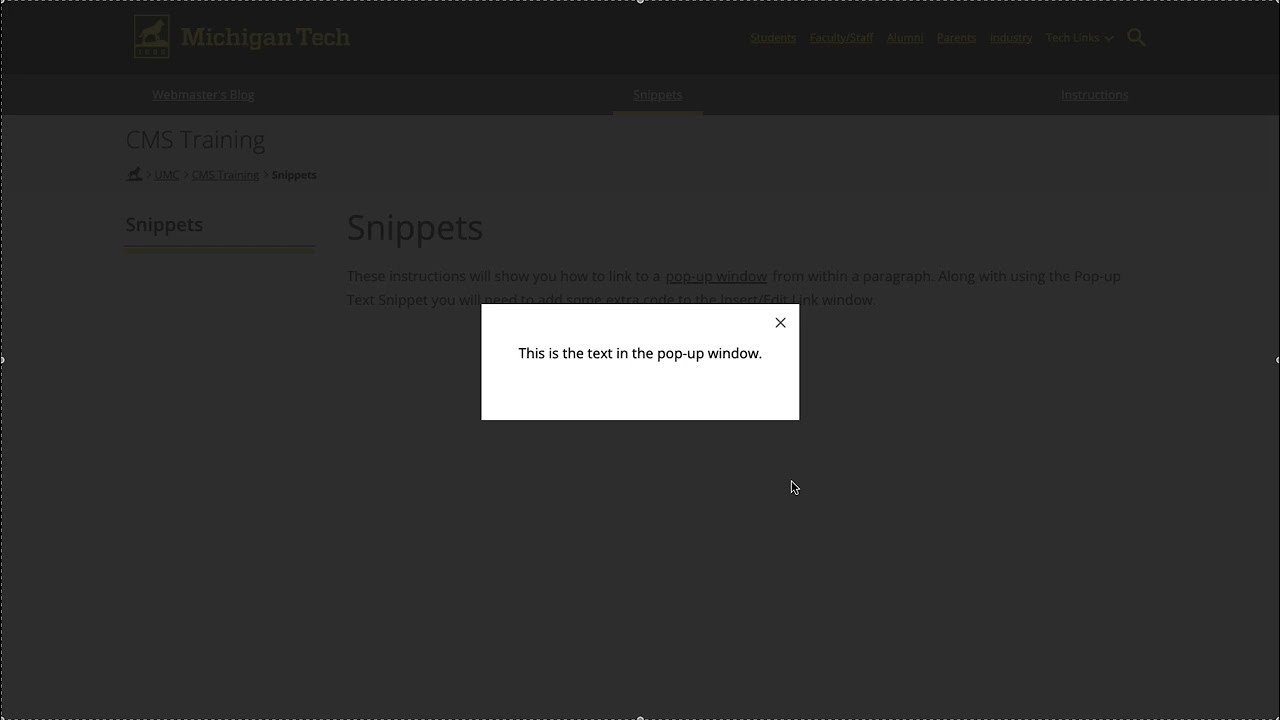
This snippet allows you to create a link or button on the page that opens a pop-up window displaying text. The pop-up can include headings, links, and images.
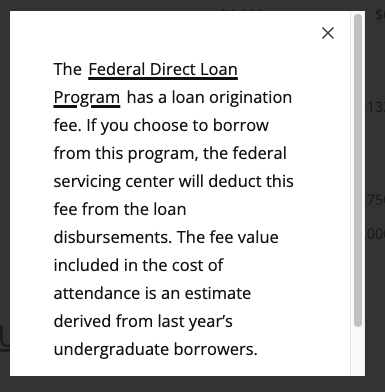
Be sure to preview your pop-ups on a mobile device and that the content your are including fits on a small phone. More than two to three paragraphs won’t fit on a phone screen and a user may have difficulty scrolling within the pop-up. You can also adjust the size of the pop-up window to accommodate the text you are including. If you have a lot of text, consider creating a separate webpage instead of a pop-up.
View pop-up text in the Style Guide.
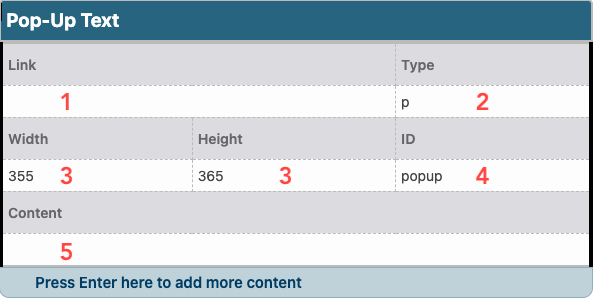
- Enter the text that will display on the main page in the Link field. If you are linking from a blockquote and need to include an author you must insert the Blockquote snippet.
- If you want the link on the page to be a button or a blockquote instead of a plain link, select the corresponding code in the Type field. In an asset you will need to type in the code.
- Plain Link: “p” (without quotation marks) will create a plain link.
- Gold Button: “button” (without quotation marks) will create a gold button.
- Blank Button: “button-black” (without quotation marks) will create a black button.
- Blank Button: “button-blank” (without quotation marks) will create a blank button.
- Blockquote: “blockquote” (without quotation marks) will create a blockquote. If you need an author in the blockquote, the Blockquote snippet needs to be inserted in the Link field.
- The Width and Height determine the size of the pop-up box in pixels.
- Enter a unique identifier in the ID field. If you are including multiple pop-ups on the page, they must have different values. The ID can only include lower-case letters, numbers, and hyphens.
- Enter the content that will display in the pop-up in the Pop Up field.
Watch Pop-up Text Snippet video
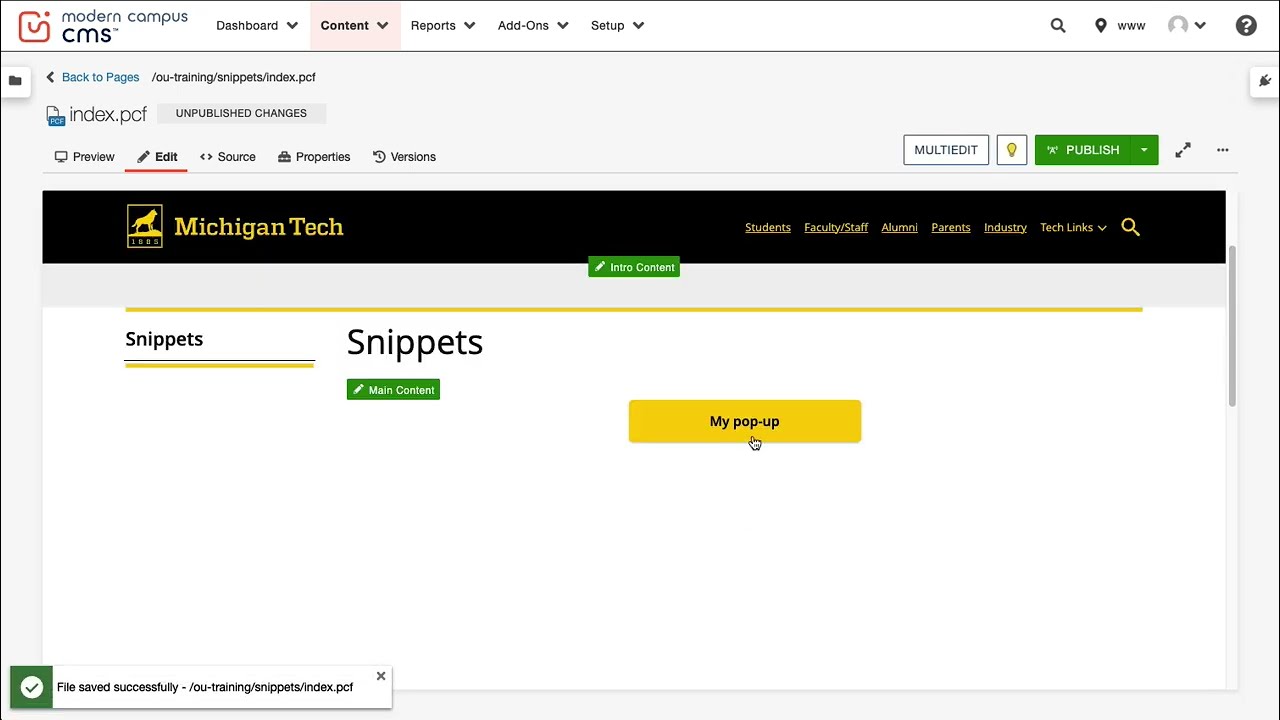
Pop-up Text Snippet
Adding a Text Pop-up Inline
To link to a pop-up from text that is within a paragraph follow these steps.
- Insert the snippet after the paragraph where the pop-up will be linked from. You will need one snippet for each separate pop-up.
- In the snippet, leave Link (#1 in the image above) blank.
- Set Type (#2 in above image) to Inline Text (“custom-link” without the quotation marks in an asset).
- Set Width and Height (#3 in image) as needed.
- Enter the unique identifier in the ID field (#4 above).
- Enter the desired content that should appear in the pop-up window in the Content field (#5).
- Select the text in the paragraph above the snippet that will open the pop-up and click the Insert/Edit link icon.

- In the URL field, type # followed by the unique identifier you set in the ID field.
- In the Class field of the Insert/Edit Link window, select (custom).
- Type “various” (without quotation marks) in the blank field.
- Click Save to close the link window.
- Save and Publish your changes.
Watch Pop up Text Inline video