Interactive images, where the user can move around in the image to view the scene from every angle, 360 photos are becoming more widespread and easier to create. You can embed them on your Modern Campus CMS website within the body content.
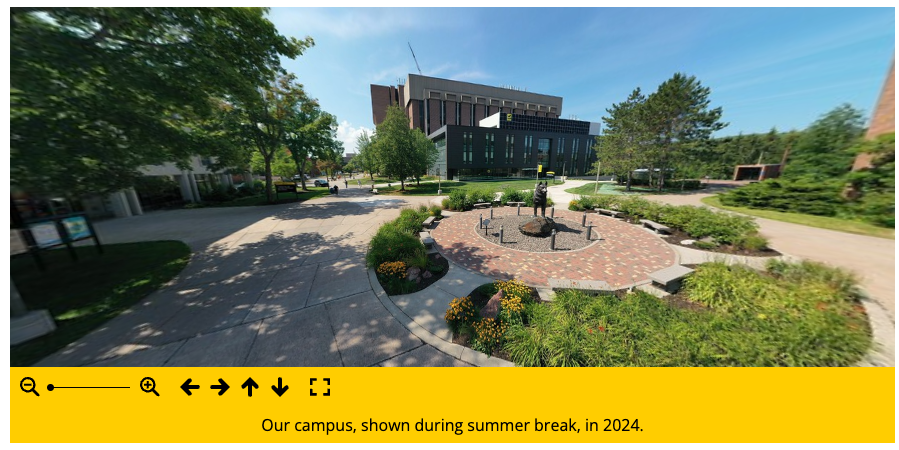

Interactive images, where the user can move around in the image to view the scene from every angle, 360 photos are becoming more widespread and easier to create. You can embed them on your Modern Campus CMS website within the body content.
This snippet is used to list one person on a page with different format options. A Personnel Information item for the individual must already exist within the website being edited.
Have you ever pasted content into the CMS, and it just doesn’t look right? You’re probably carrying old formatting code into the new CMS. Common culprits are copying from a Word document, copying text from one browser and pasting it into another, or copying text that was formatted in-line (using <span> and <style> tags directly in the code instead of letting the preformatted stylesheets do the work.)
Adding content with this type of formatting is bad for a couple of reasons:
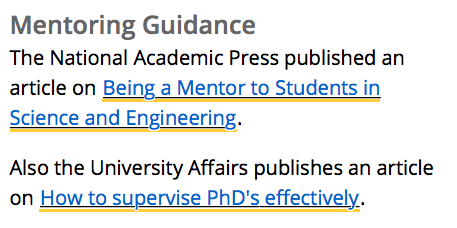

This snippet creates the Contact boxed sidebar for Graduate Program Directors and Graduate Program Assistants. Using the snippet keeps the formatting consistent across all departmental graduate program pages.
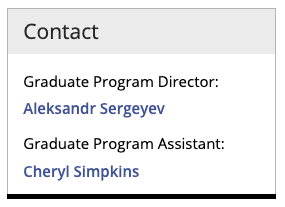
This snippet is no longer available. You should use the Row w/ Left Image snippet instead.
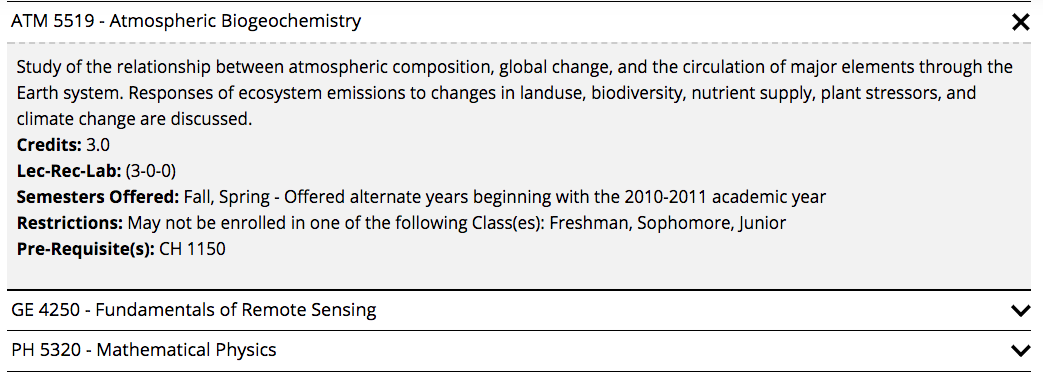
This snippet is used to pull course information from Banner and manually display it on the page in sliders. This is normally used when there are courses from multiple departments listed and you cannot just link to the department’s Banweb course listing page.
This snippet creates a formatted blockquote that includes the quote and the author. View the blockquote in the Style Guide.

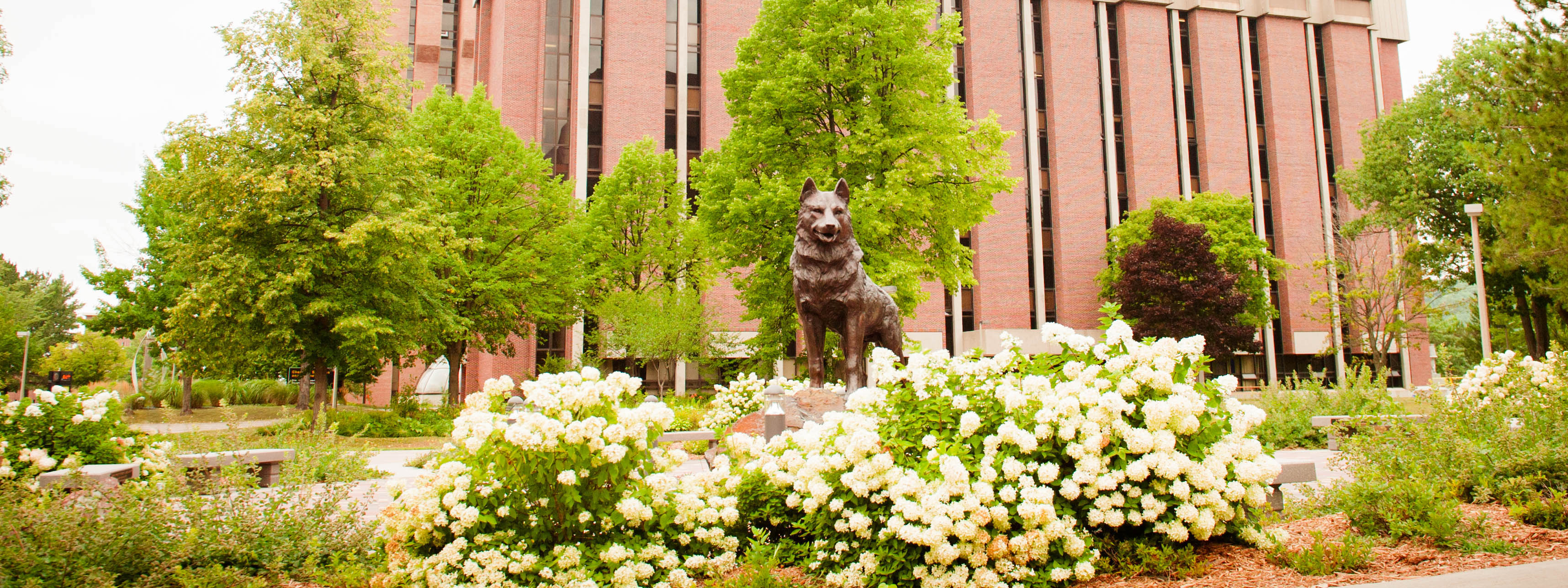
This is an example of how you can include an image at the top of your blog post to simulate the banner image at the top of a CMS webpage. Make sure your image is horizontally oriented and at least 1024 px wide. When inserting the image into your post, select the Large version and do not include a caption. You will need to sign into the VPN when uploading images into WordPress from off campus.
Today we’re launching our new headers and footers. For many years now, we’ve offered our headers and footers as iframe codes, which worked well, until our new template came along in 2016. The new brand brought in different dimensions, styling, and navigation. This caused us a bit of trouble as the new dimensions and functionality would not work with the iframe setup found across various Tech-associated properties. This led us to seek out a new, long-term approach for headers.
Iframes are an easy way to embed pieces of content from other websites. However, they are limited in their integration with subpages. Our main issue dealt with height: all iframes were locked at 100px high. Whereas the new header changes in height depending on navigation type, and if the header is loaded on a mobile device. The same issues were found on the footer as well; the footer iframes simply can’t show enough detail, leading to contact information and other relevant links being cut off.
Use JavaScript! The new headers and footers are built with JavaScript which solves the issues mentioned above. The new headers allow you to have our horizontal navigation found throughout Tech’s site; you can pull in navigation from the CMS or build your own. Customize the navigation font size, the header type (same as before: mini, logo-only, full), custom search location, and to follow Tech’s main template: fixed header to stick to the top. Footers ship with the default contact information for the university, but information from a CMS site or custom contact information can be fed in.
Set up your new header or footer starting here. Then, copy the HTML/JavaScript snippet into where the banner(s) should show on your page. If you used our iframes in the past, you can just replace the iframes with your new snippets. And that’s it! Nothing difficult, but now you have a header or footer that follows the same style and technical build of the CMS banners. If you have any questions, please feel free to email webmaster@mtu.edu.